Dev portal
App Binding
A binding connects your Mini App to a host app — the app your Mini App runs in. From the binding you choose which Shoppingate APIs your Mini App can call.
1. Open App Binding
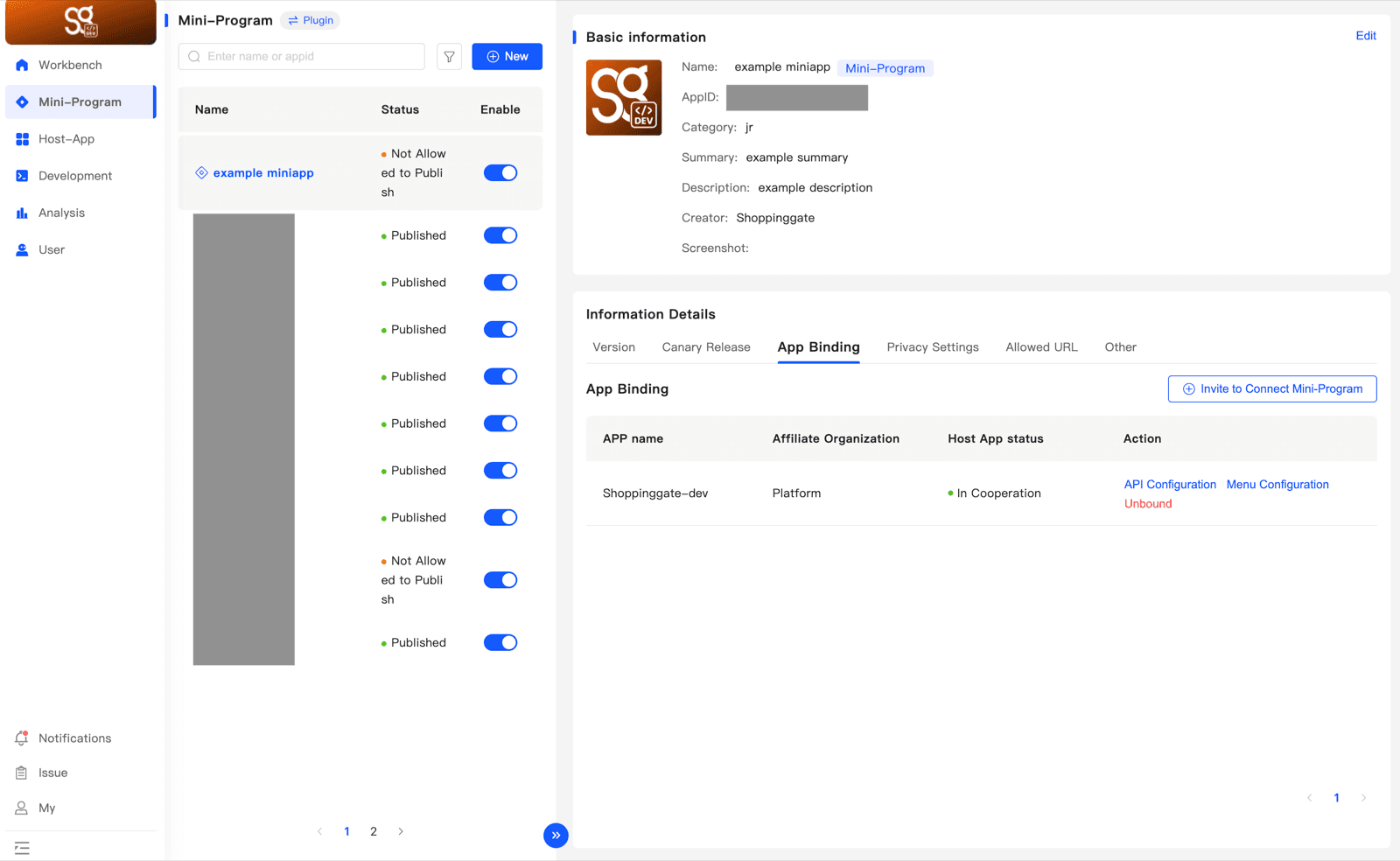
Open Mini-Program, select your Mini App, and click the App Binding tab in Information Details. The table lists the host apps your Mini App is bound to:
- APP name — the host app.
- Affiliate Organization — the organization the host app belongs to.
- Host App status — the state of the binding.
In the Action column, click API Configuration.
2. Find the API
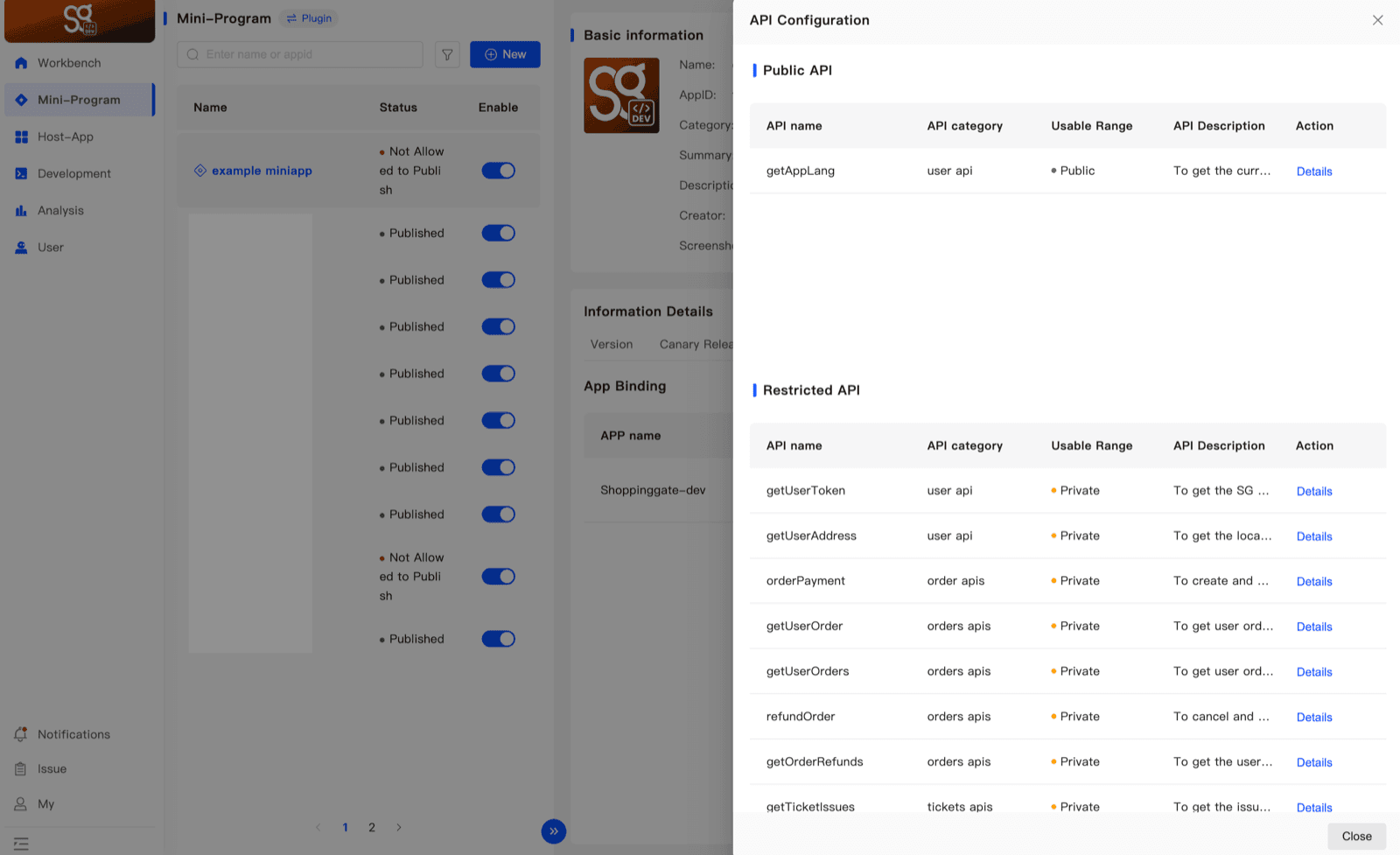
API Configuration shows two lists:
- Public API — the APIs your Mini App can call right now.
- Restricted API — the APIs that need permission before your Mini App can call them.
Each row shows the API name, API category, Usable Range (Public or Private) and a one-line API Description. Find the API you need in the Restricted API list and click Details in its row.
3. Request the API
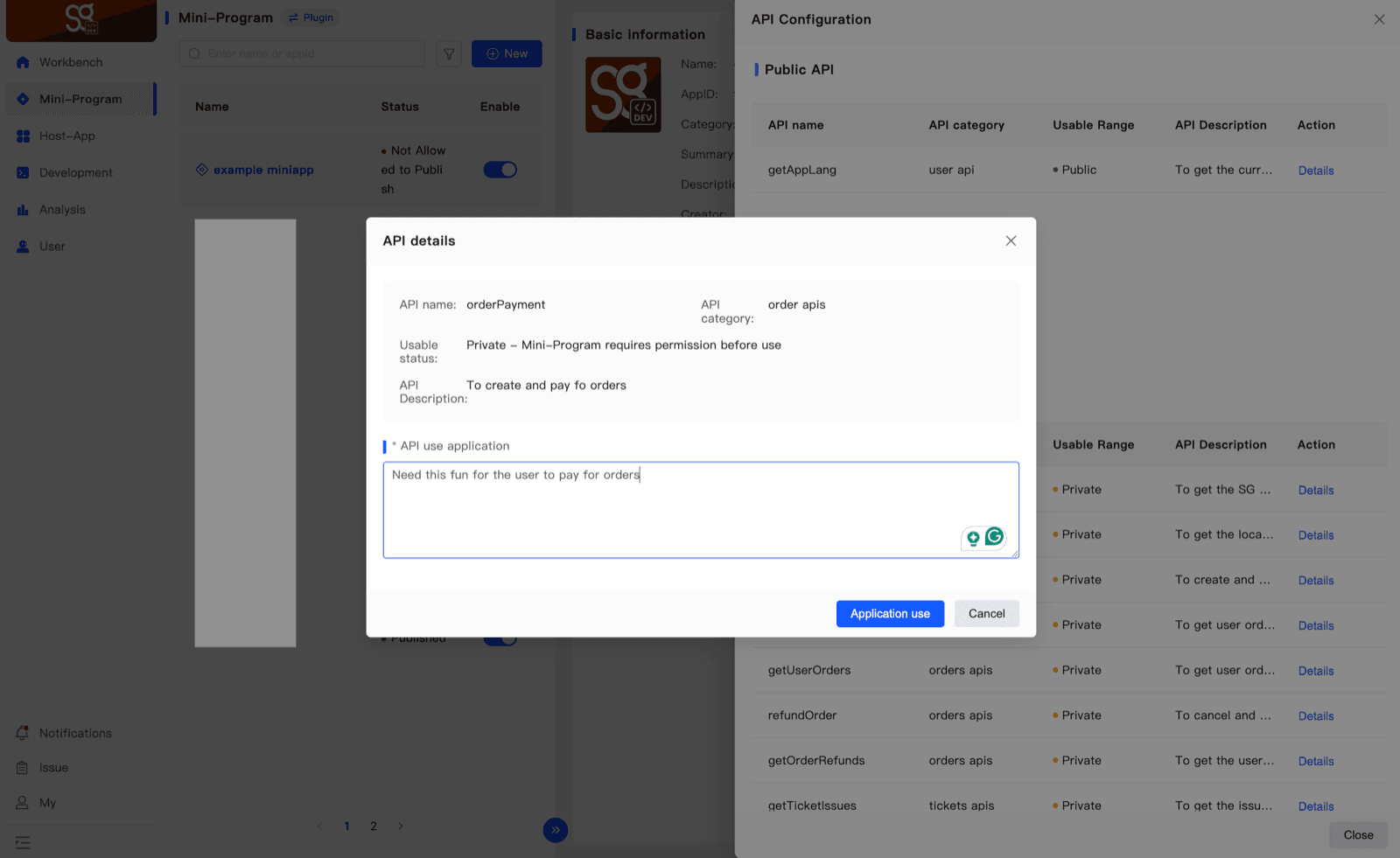
API details shows the API's name, category, usable status and description. In API use application, write why your Mini App needs this API — for example, "Need this function for the user to pay for orders." Then click Application use.
4. After the review
Your request is reviewed by the Shoppingate admin.
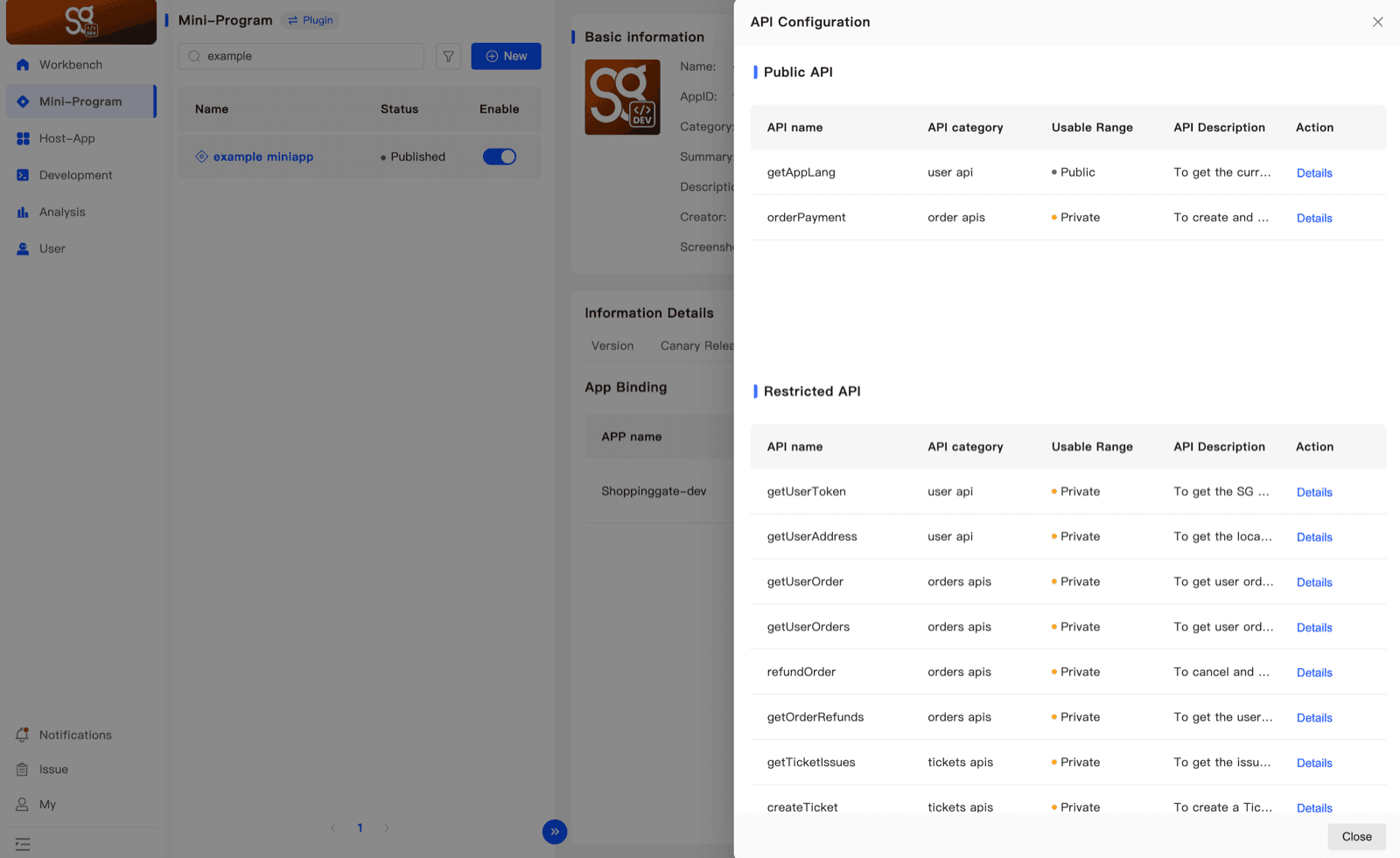
- Approved — the API moves to the Public API list, and your Mini App can call it. Its Usable Range still says Private — that is expected.
- Rejected — click Details on the API again to see the reason.
Next: register the API in your code. An approved API still has to be declared in
SGConf.js before ft.<name>(...) works. See Host functions → Step 2.