Dev portal
Mini-Programs
See all your Mini Apps, create a new one, and add an Arabic version of its details.
The Mini-Program page
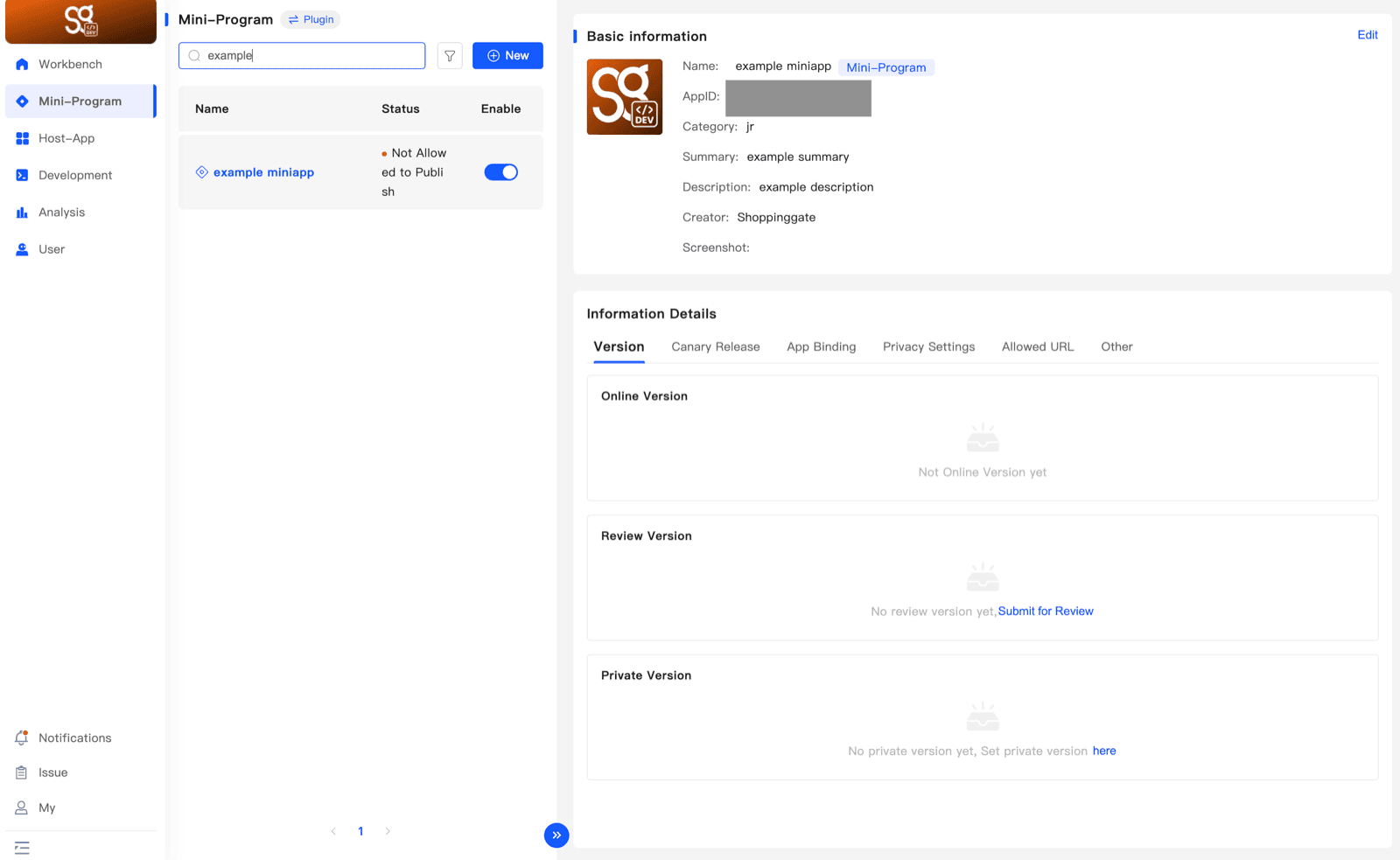
Click Mini-Program in the menu. The left side lists all your Mini Apps with their Status and an Enable switch. Click a Mini App to see its details on the right.
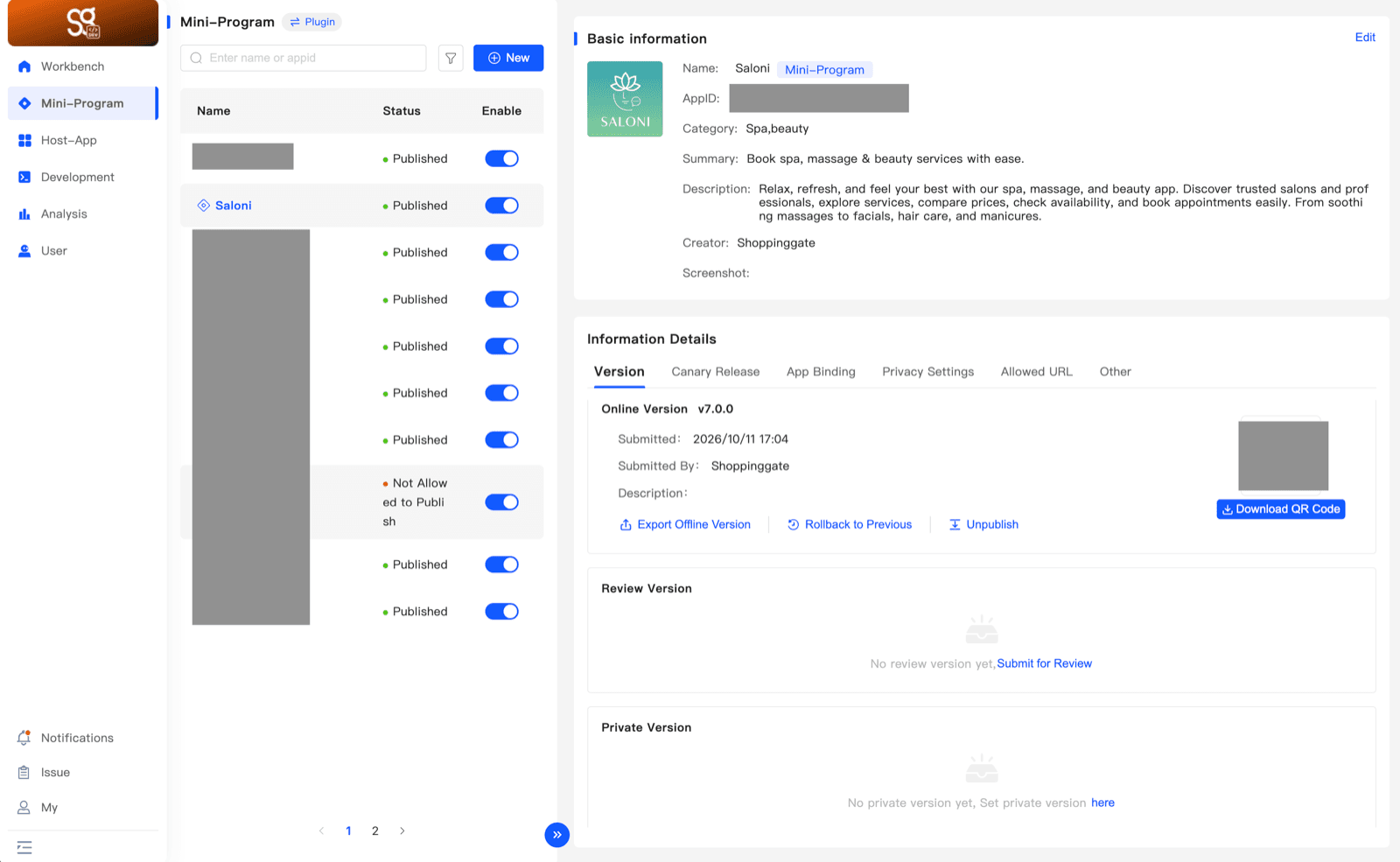
Use the search box to find a Mini App by its name or AppID.
Status
Status
Meaning
Unavailable
The Mini App was just created and its creation is under review.
Not Allowed to Publish
The creation was approved. The Mini App exists, but it is not published yet.
Published
Published to the Shoppingate app — the Mini App is live in the host app.
Unpublished
Unpublished from the Shoppingate app.
Removed
The Mini App was removed from the Dev portal.
Enable
The Enable switch controls whether users can open the Mini App in the Shoppingate app (the host app). Turn it off and the Mini App can't be opened there.
Mini App details
Basic information shows the Mini App's name, type, AppID, category, summary, description, creator and screenshots. Click Edit (top right) to change them.
Create a Mini-Program
Click New above the list. Fill in the New Project form in English — English is always the default language. You can add Arabic after the Mini App is created (see Add Arabic below).
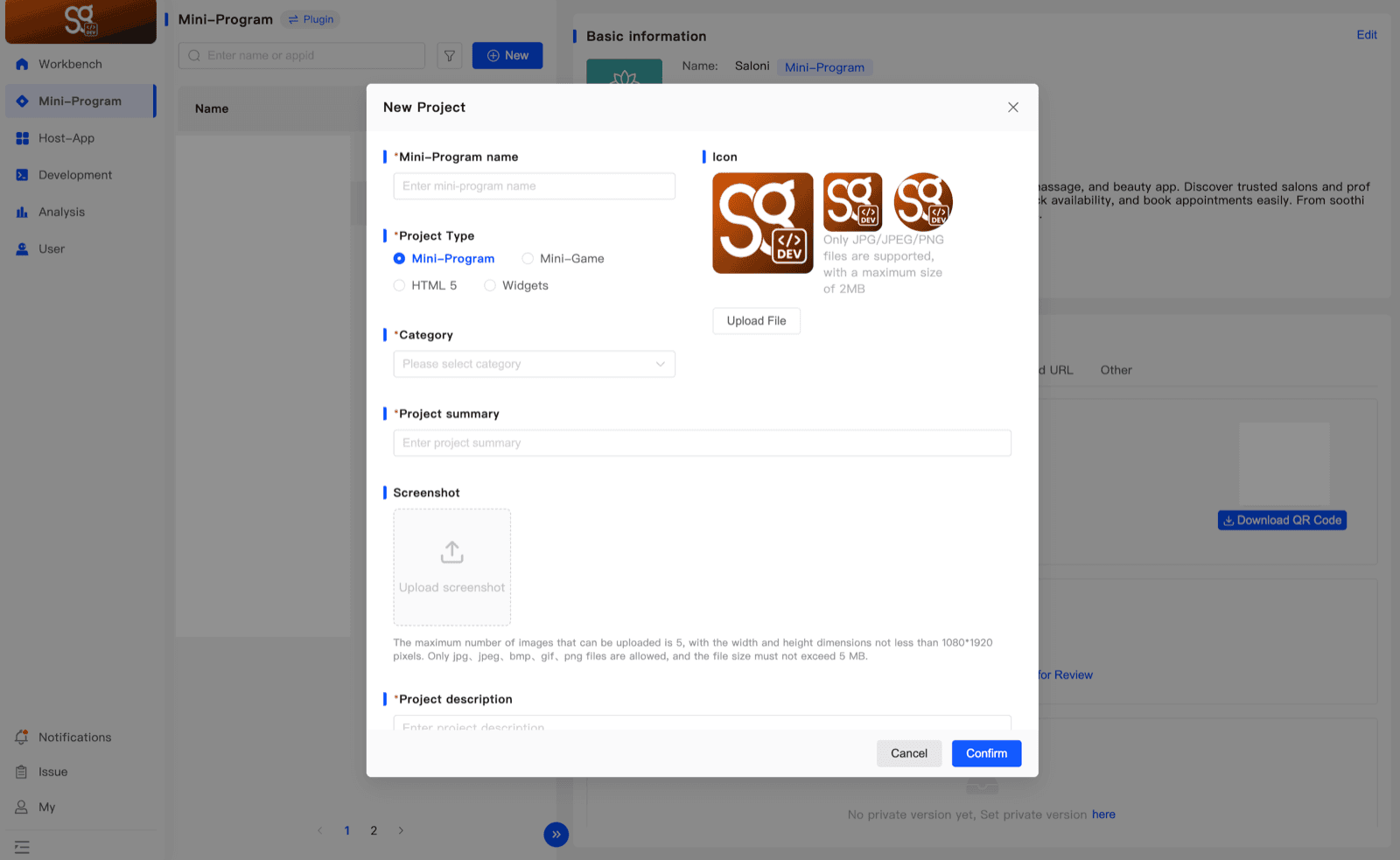
Mini-Program nameRequired
The name users see in the Shoppingate app.
Project TypeRequired
Mini-Program, Mini-Game, HTML 5 or Widgets. It cannot be changed after the Mini App is created.
CategoryRequired
Pick one or more categories. The list is managed by the Shoppingate admin.
Project summaryRequired
A short line about what the Mini App does.
Project descriptionRequired
A longer description of the Mini App.
Iconoptional
JPG, JPEG or PNG, up to 2 MB. If you don't upload one, the default SG icon is used.
Screenshotoptional
Up to 5 images, at least 1080 × 1920 pixels each. JPG, JPEG, BMP, GIF or PNG, up to 5 MB each.
Add your own icon and screenshots. They are optional, but they are what users see for your Mini App. Without an icon, your Mini App shows the default SG icon.
Choose the Project Type carefully. It cannot be changed after the Mini App is created.
Click Confirm to create the Mini App.
The creation review
A new Mini App is reviewed by the Shoppingate admin before you can work on it. While it is under review, it shows an Under Review tag and its status is Unavailable.
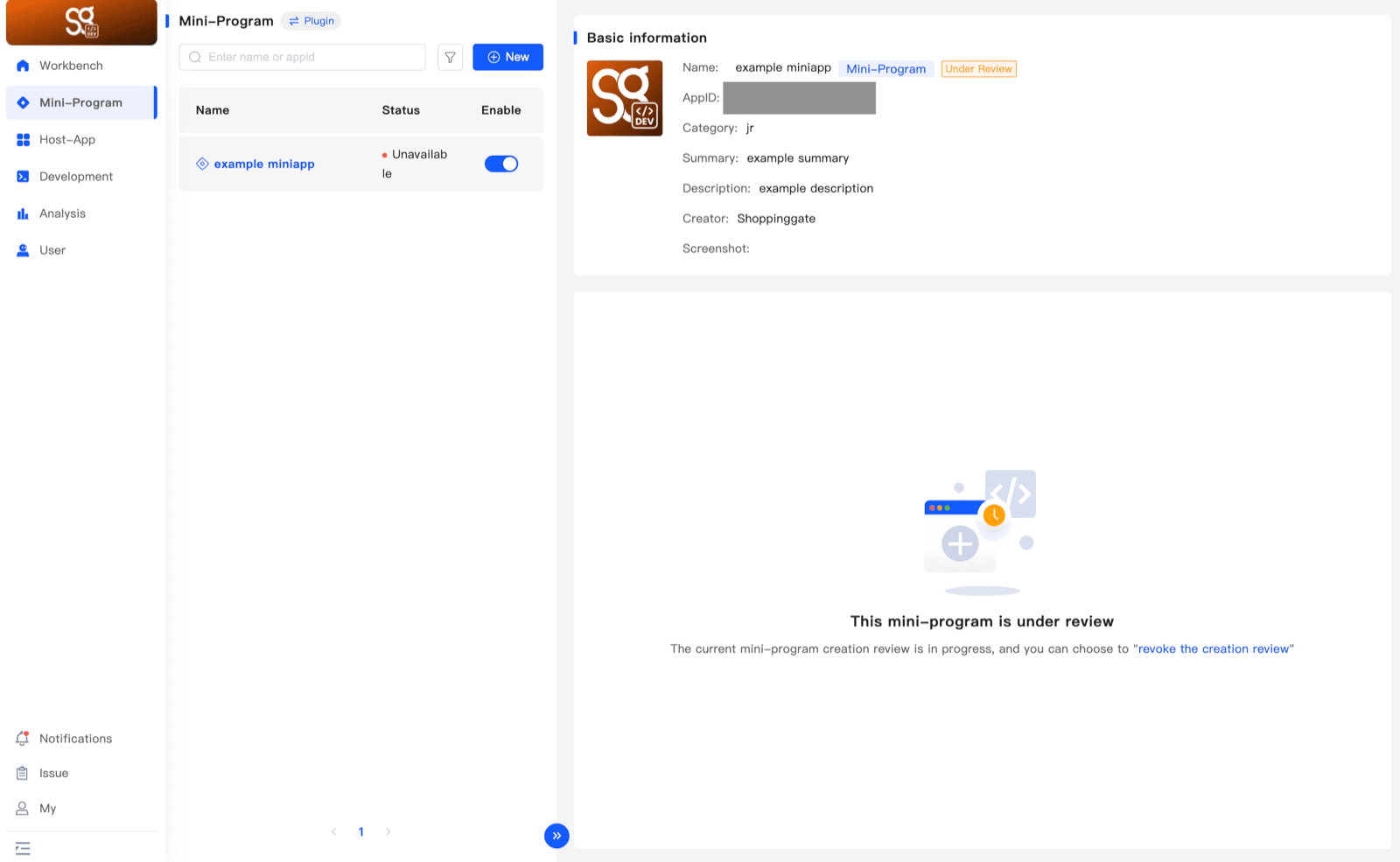
To stop the review, click revoke the creation review. The Mini App goes back to a draft.
Once the admin approves it, the status changes to Not Allowed to Publish and the Information Details section appears. The Mini App now exists, but it is not published yet.
Add Arabic
Every Mini App has English as its default language. The only other language you can add is Arabic. You add it after the Mini App is created.
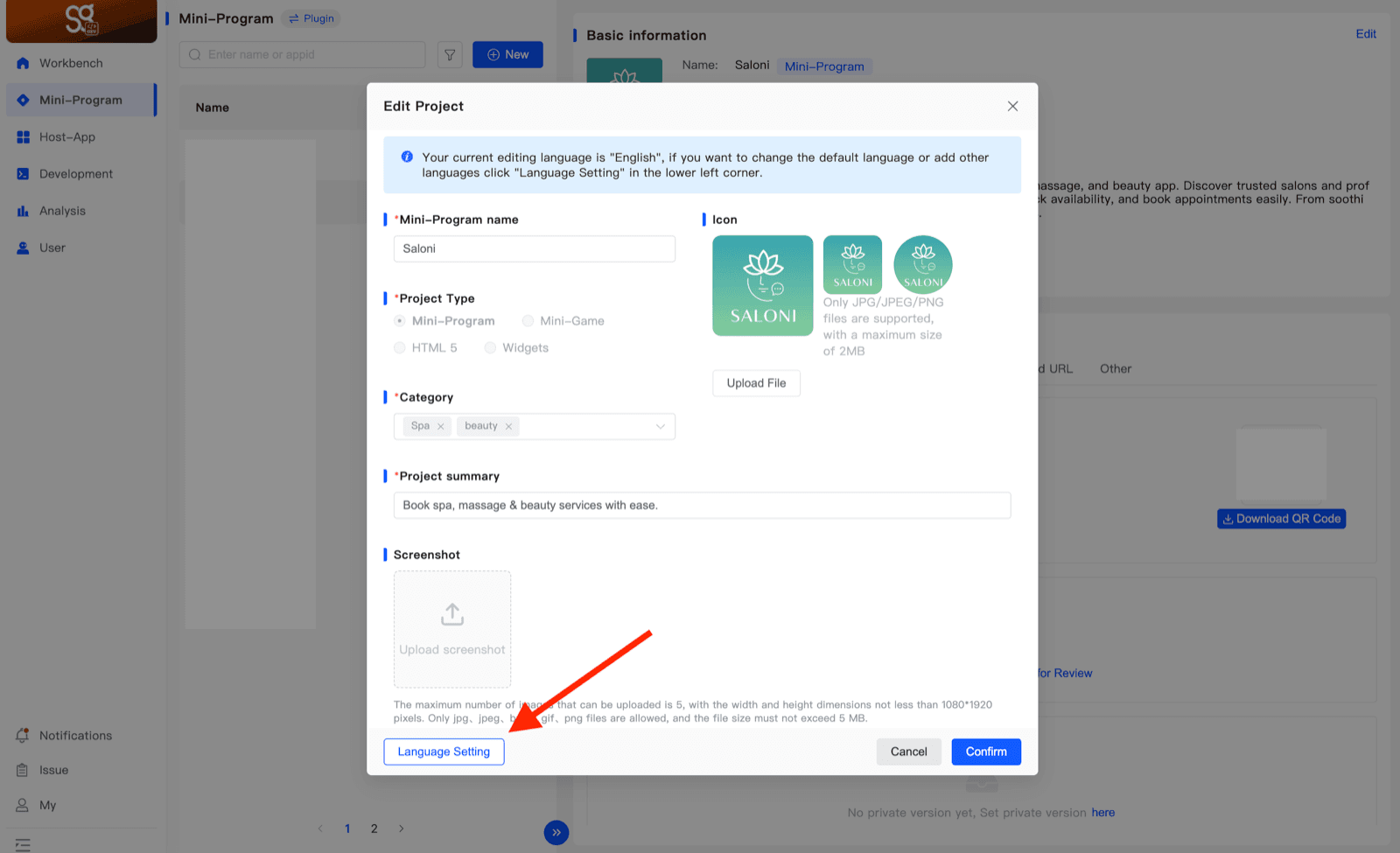
1. Open Edit Project
Select the Mini App and click Edit in Basic information. The Edit Project form says which language you are editing. Click Language Setting in the lower left corner.
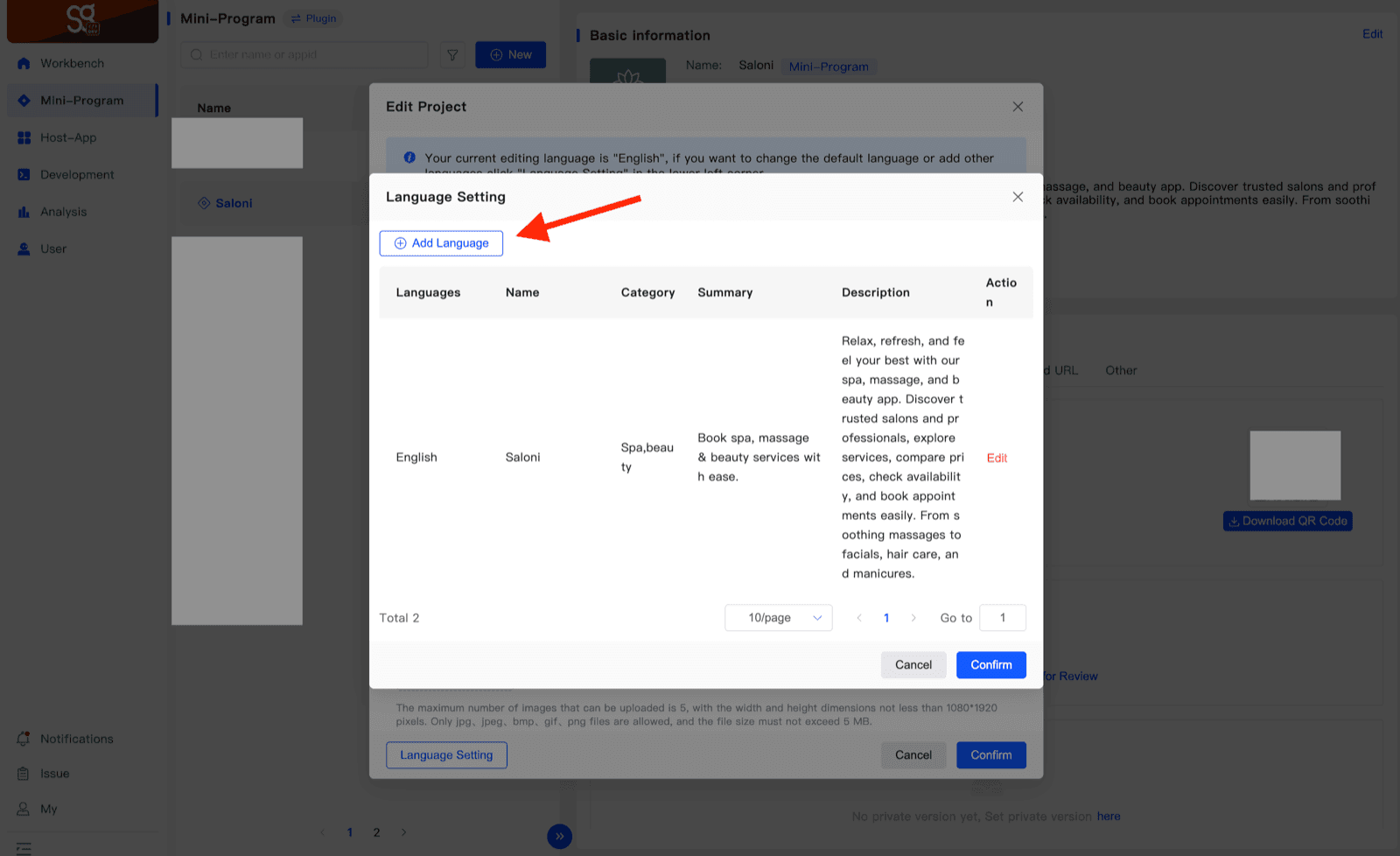
2. Add a language
Language Setting lists the languages of the Mini App with their name, category, summary and description. Click Edit on a row to change that language, or Add Language to add Arabic.
3. Fill in the Arabic details
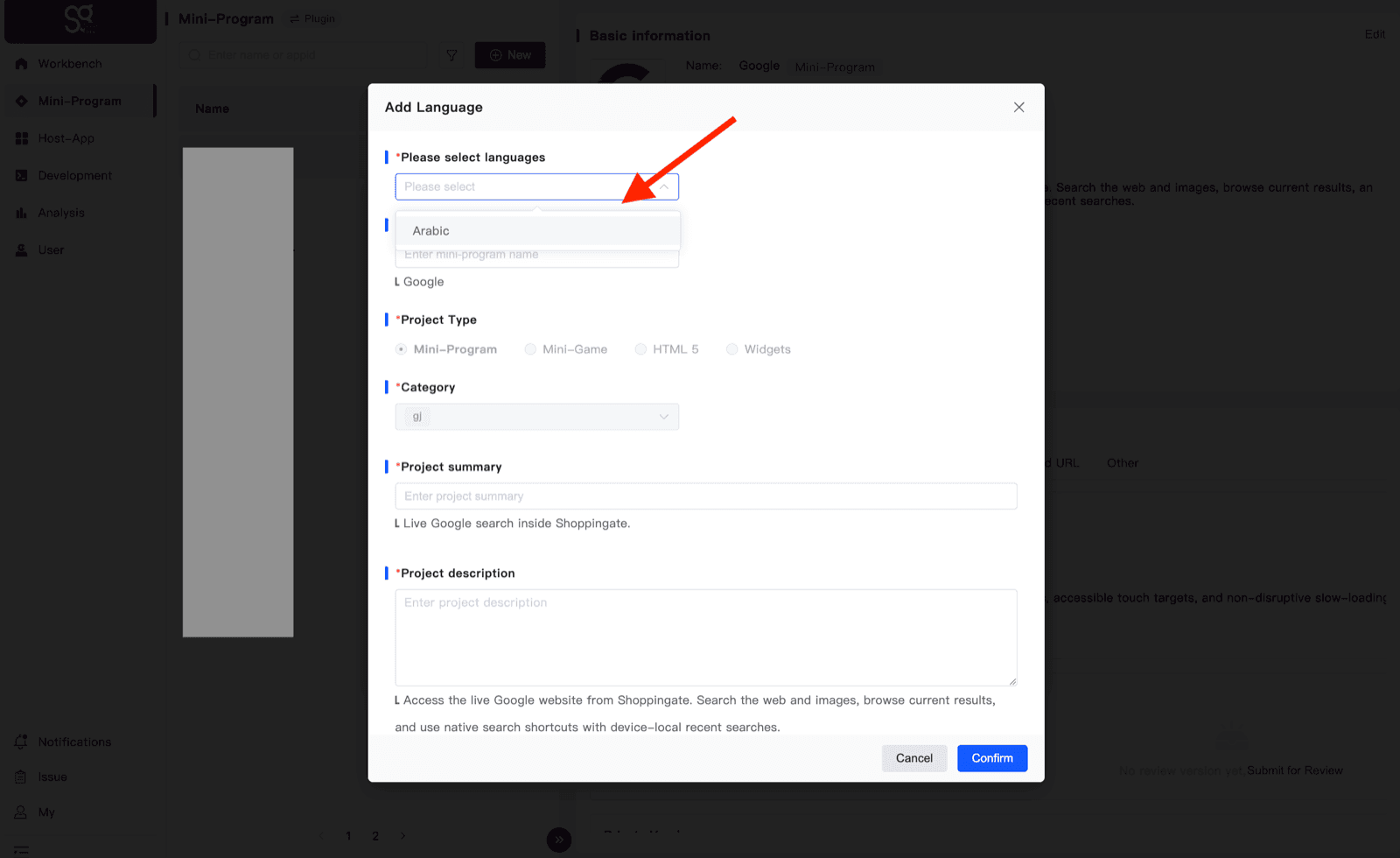
In Please select languages, choose Arabic. Then fill in the Mini-Program name, Project summary and Project description in Arabic, and click Confirm.