SG Studio
Create a project
Start a new project for your Mini App: choose its type and a template, and link it to your Mini App's App ID.
On the Projects screen, click the + card. This opens Create A Project.
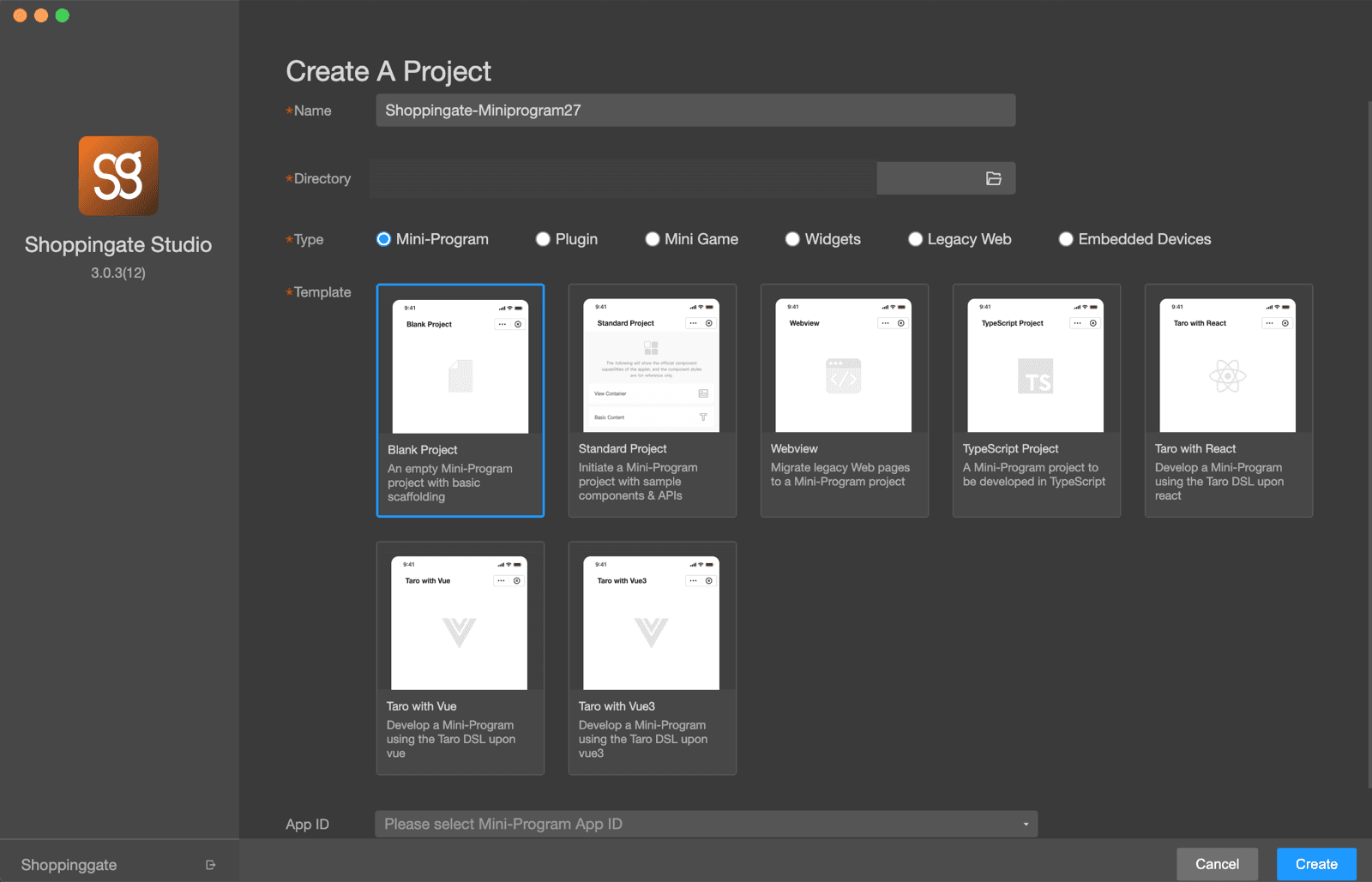
The fields
NameRequired
The name of the project on your computer.
DirectoryRequired
The folder where the project files are created.
TypeRequired
Mini-Program, Plugin, Mini Game, Widgets, Legacy Web, Embedded Devices. The templates change with the type.
TemplateRequired
The starting code for your project — see below.
App ID
The Mini App this project belongs to. The list shows the Mini Apps you created in the Dev portal.
Mini-Program templates
Blank Project
A pure Taro project with only the basic files.
Standard Project
A pure Taro project that explains every component, the built-in functions and the layout — so you understand the code and the framework fully. A good place to start learning.
Webview
A Mini App that shows your web pages in a web view. See Web view.
TypeScript Project
Taro, written in TypeScript instead of JavaScript.
Taro with React
The Taro framework together with React, so you get the features of both.
Taro with Vue
The Taro framework together with Vue, so you get the features of both.
Taro with Vue3
The Taro framework together with Vue 3, so you get the features of both.
App ID
You can leave the App ID empty and choose it later. It is better to create your Mini App in the Dev portal first, then pick its App ID here.
Click Create. The project opens in the workspace.
Next: The workspace — write, compile and test your Mini App.