Dev portal
Users & roles
Invite people to your organization to work on your Mini Apps, and control what each member can do with roles.
1. Collaborators
Open User → Member. The Collaborators tab lists the members of your organization — the people who work with you on your Mini App projects. They log in to the Dev portal and SG Studio with their own accounts.
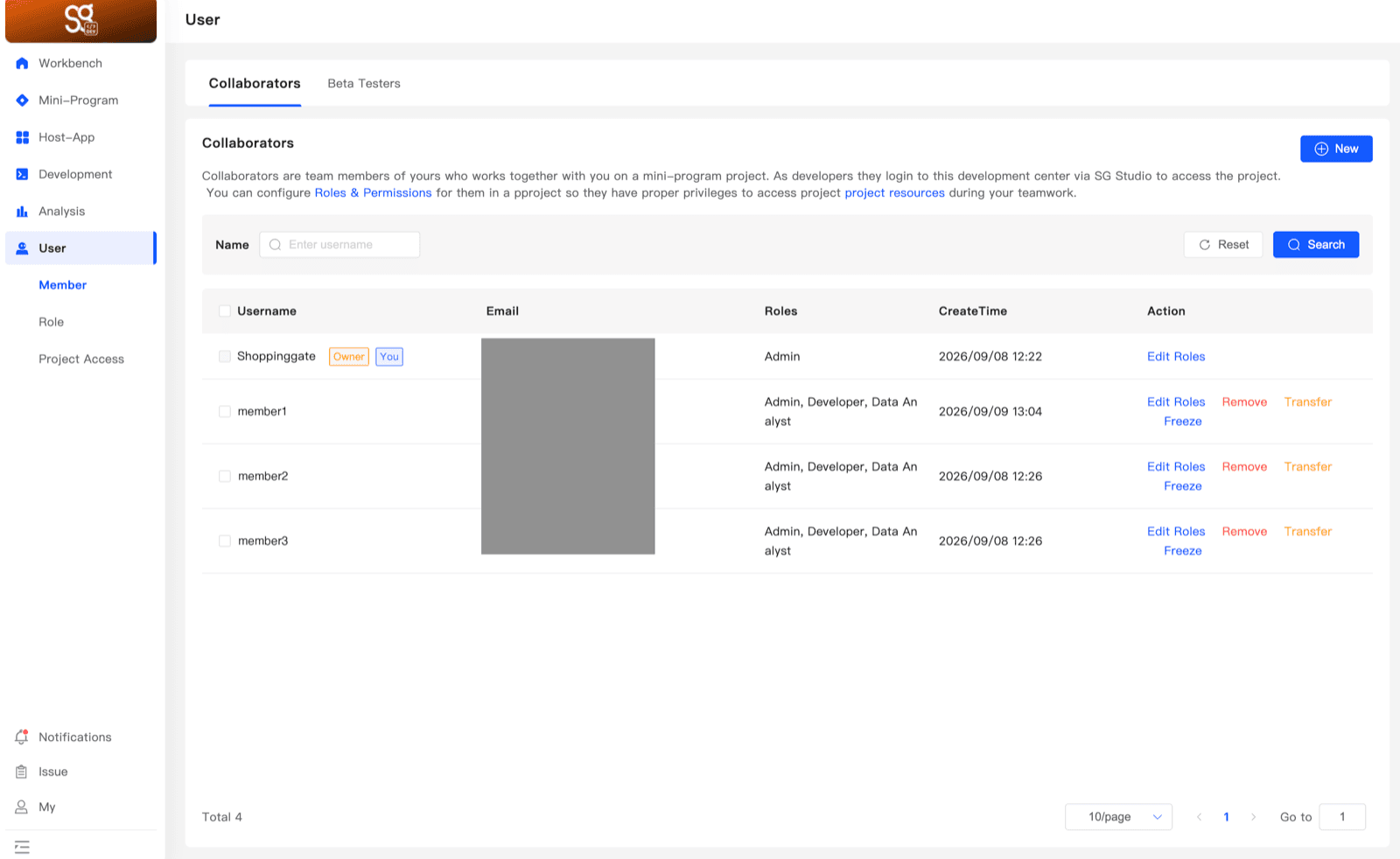
Each row shows the member's Username, Email, Roles and when they joined. Your own row is tagged You, and the account owner is tagged Owner. Use Name to search by username.
- Edit Roles — change the member's roles.
- Remove — remove the member from your organization.
2. Invite collaborators
Click New on the Collaborators tab. You invite members with a link:
Members who join through the link will becomeRequired
The roles new members get — Admin, Developer, Data Analyst. You can tick more than one.
Validity period
How long the link works: 10 minutes, 2 hours, 24 hours or permanently valid.
Usage Count
No Limit — any number of people can join with the link. One-Time Valid — only one person can.
Click Generate, then Copy the Team Invitation Link and send it to the person you want to invite.
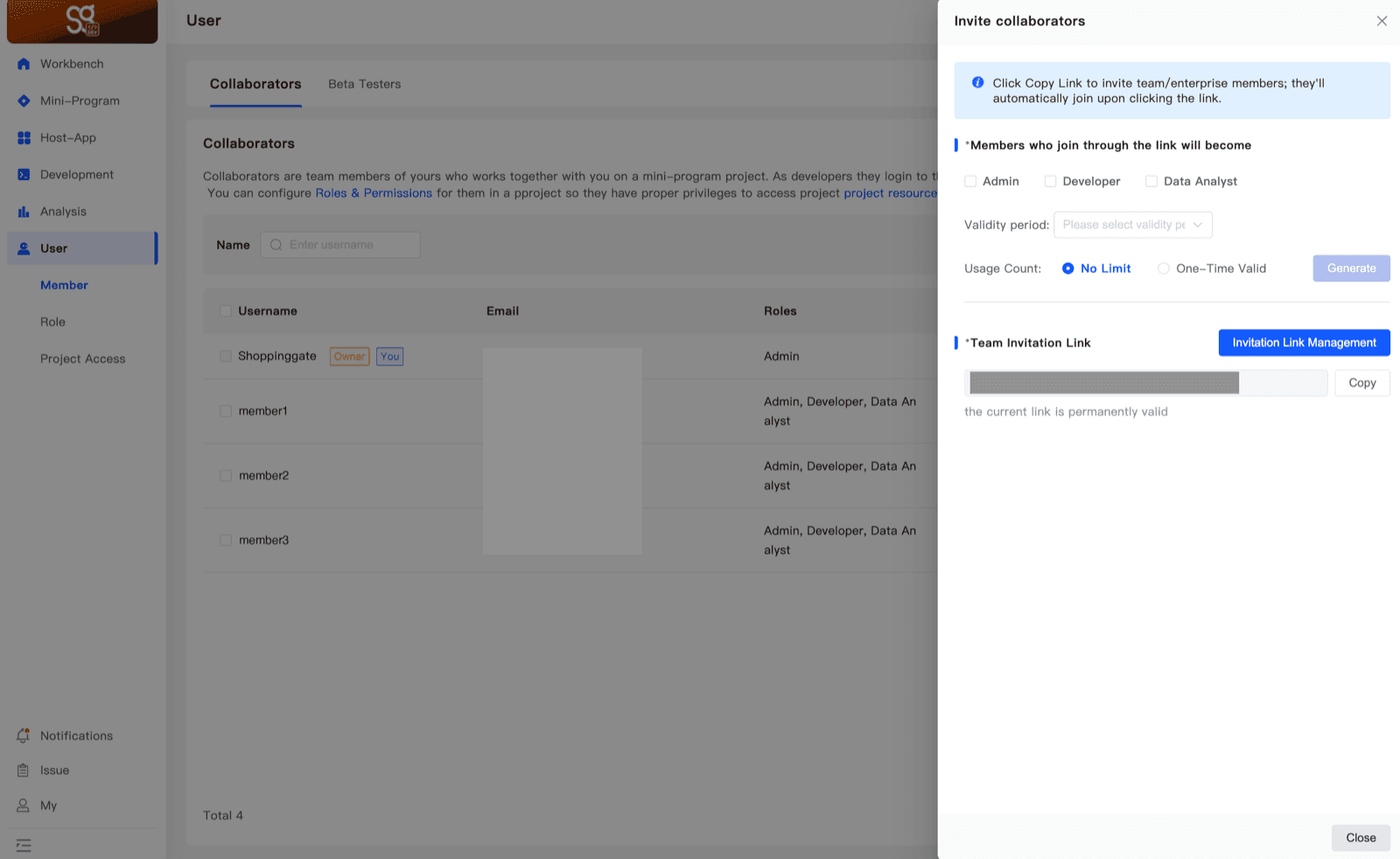
When they open the link, the Dev portal asks them to log in — or to create an account if they don't have one yet (see Sign up & login). They then join your organization with the roles you chose.
Anyone with the link can join your organization. Share it only with the people you want to invite. For one person, prefer One-Time Valid and a short validity period.
3. Roles & permissions
Open User → Role. There are three roles to start with: Admin, Developer and Data Analyst. Select a role to see its members.
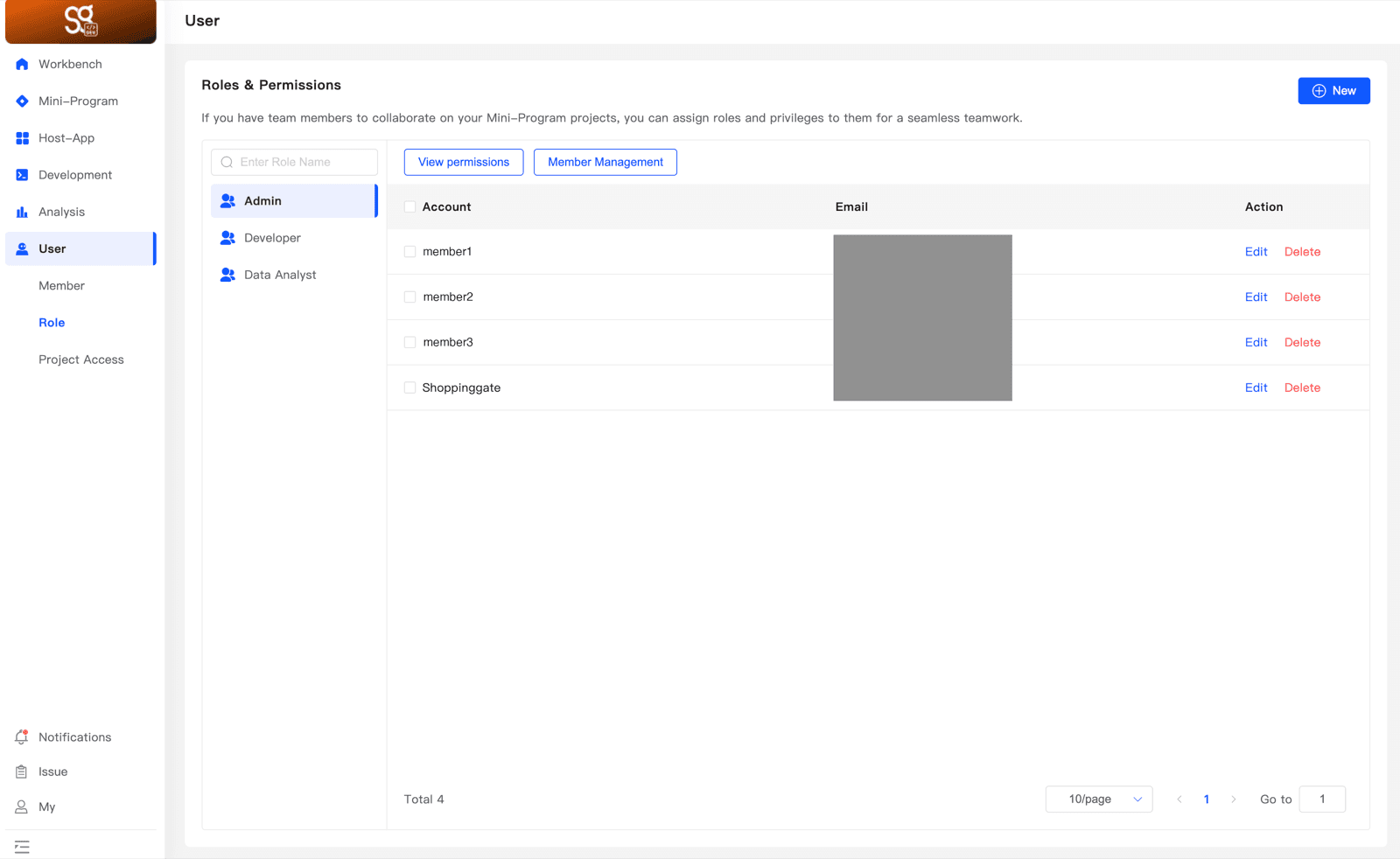
- View permissions — see what the selected role can do.
- Member Management — add members to the selected role.
- Delete (in a member's row) — take the member out of the role.
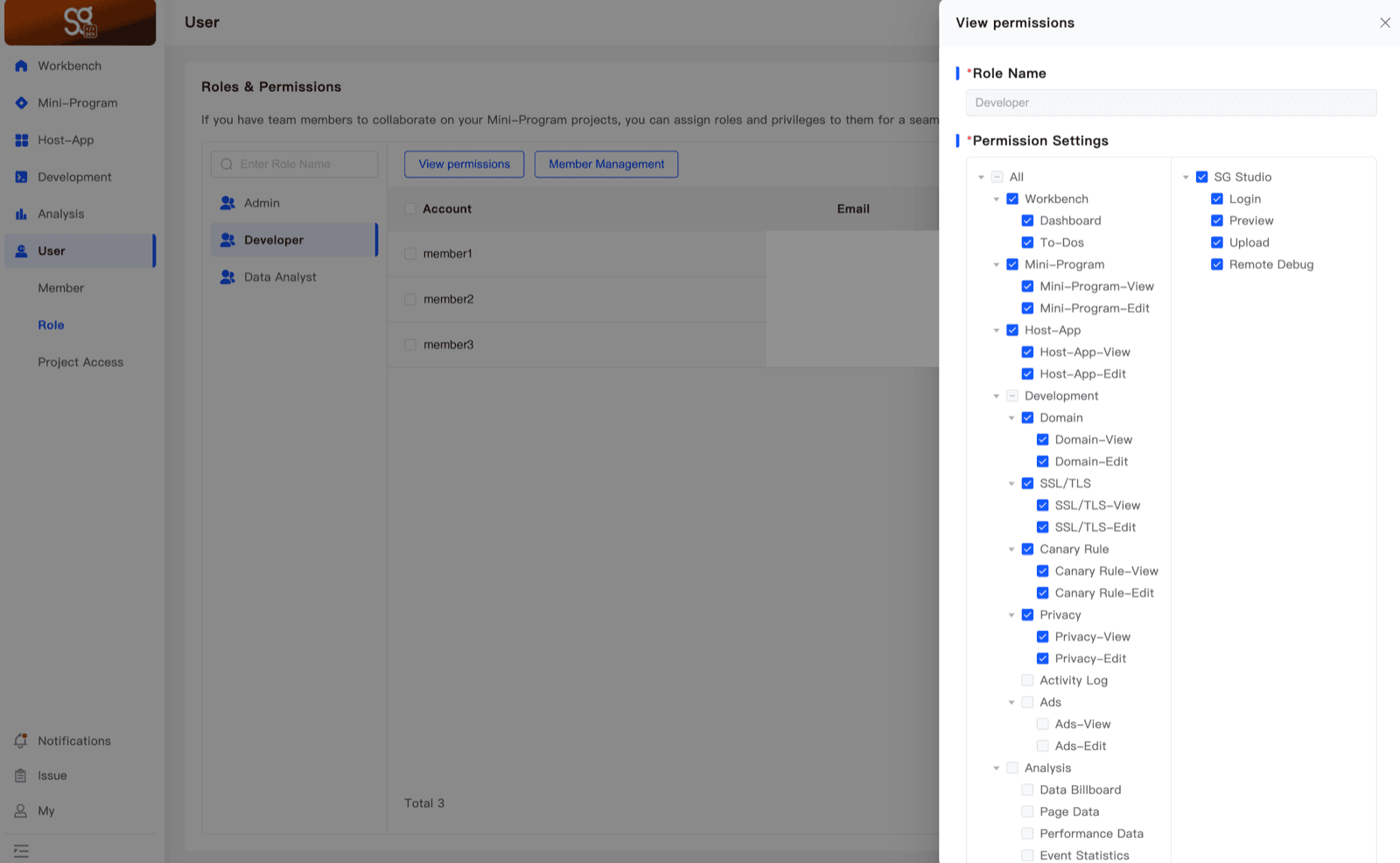
4. Create a role
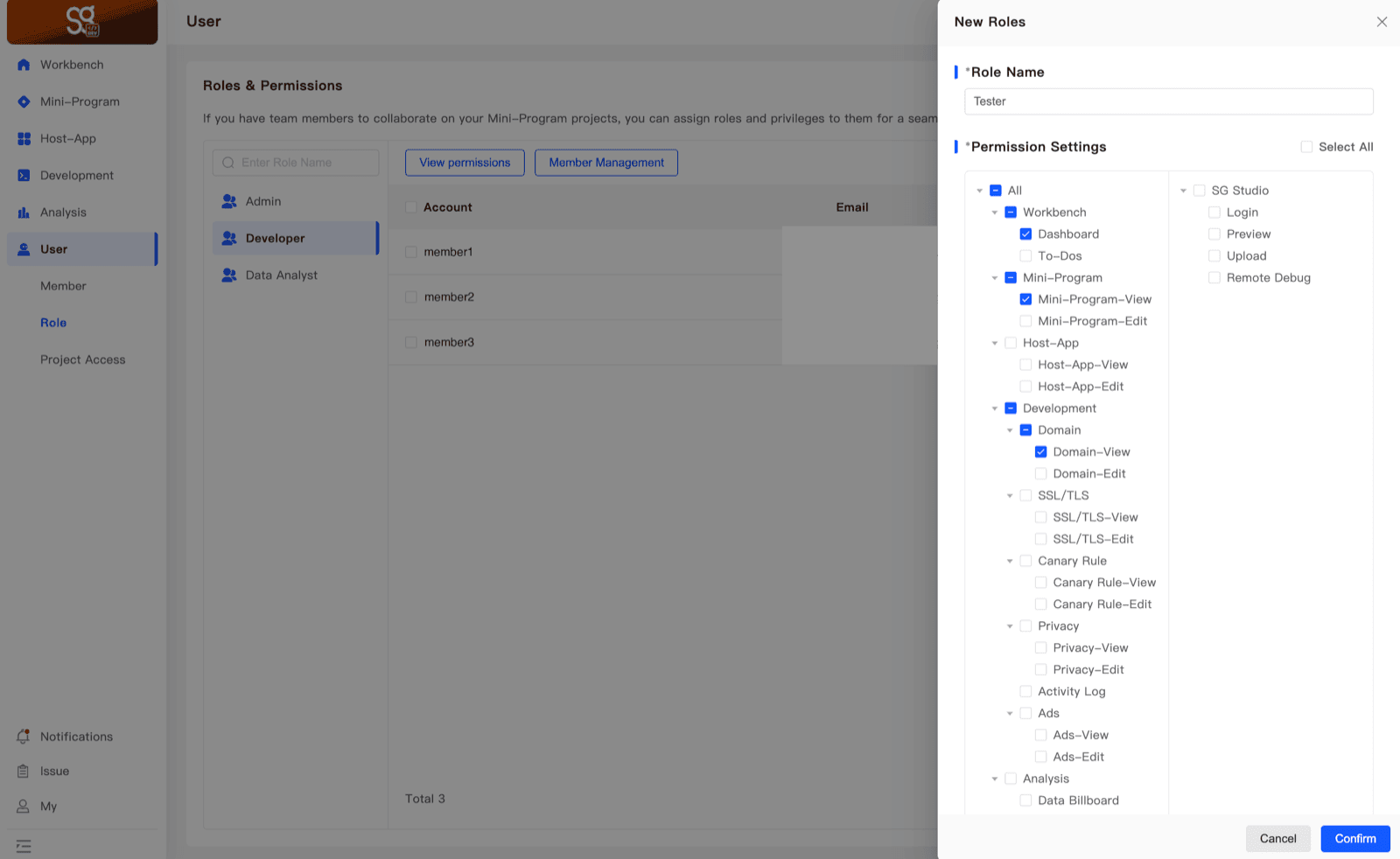
Click New on Roles & Permissions. Enter a Role Name, then tick what the role can do in the Permission Settings tree. Select All ticks everything. Click Confirm.
5. Notifications
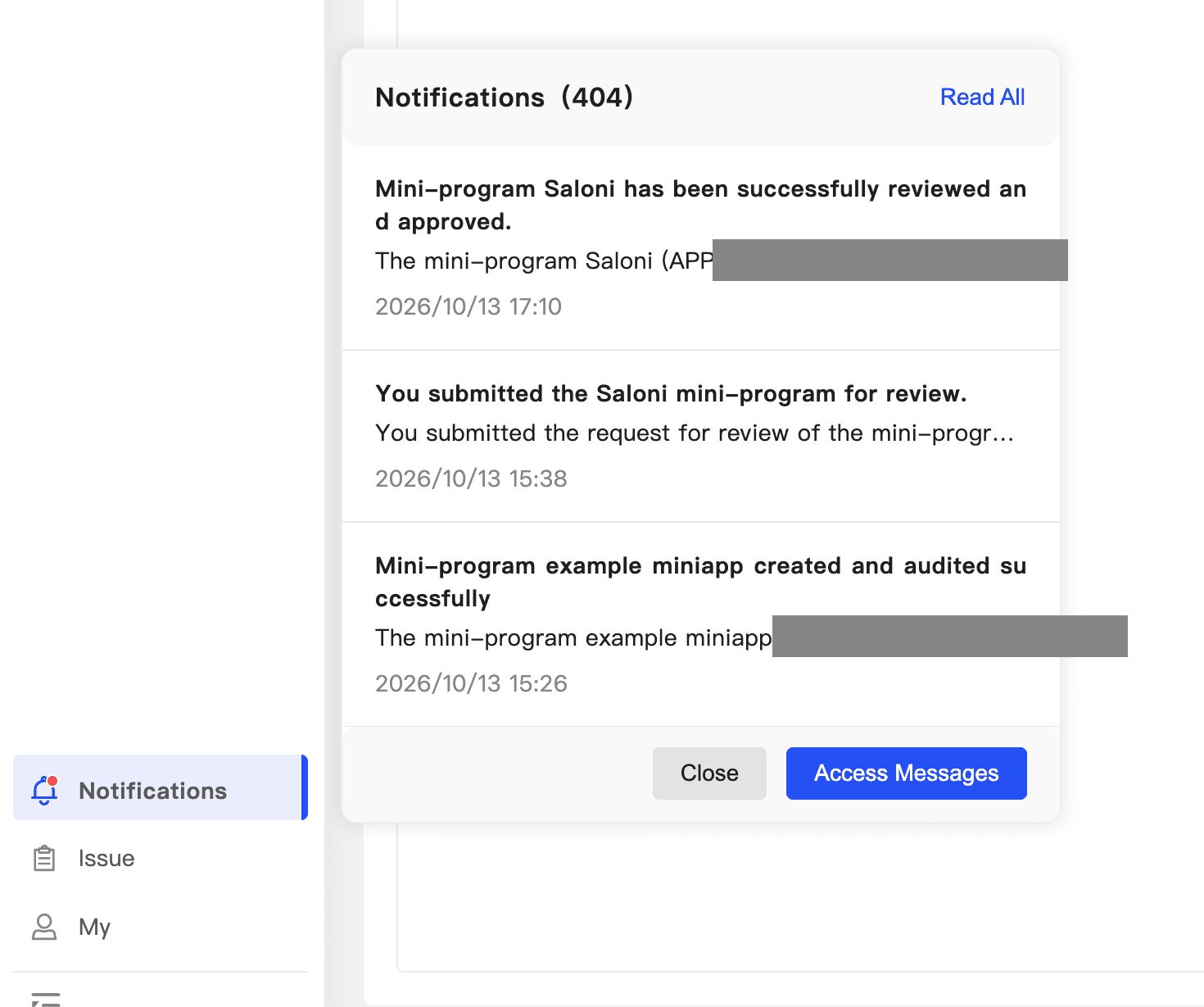
Click Notifications in the menu to see updates on your Mini Apps — for example, when a Mini App's creation is approved, a version is reviewed, or a domain application is approved. Read All marks them all as read, and Access Messages opens the full list.