Dev portal
Privacy Settings
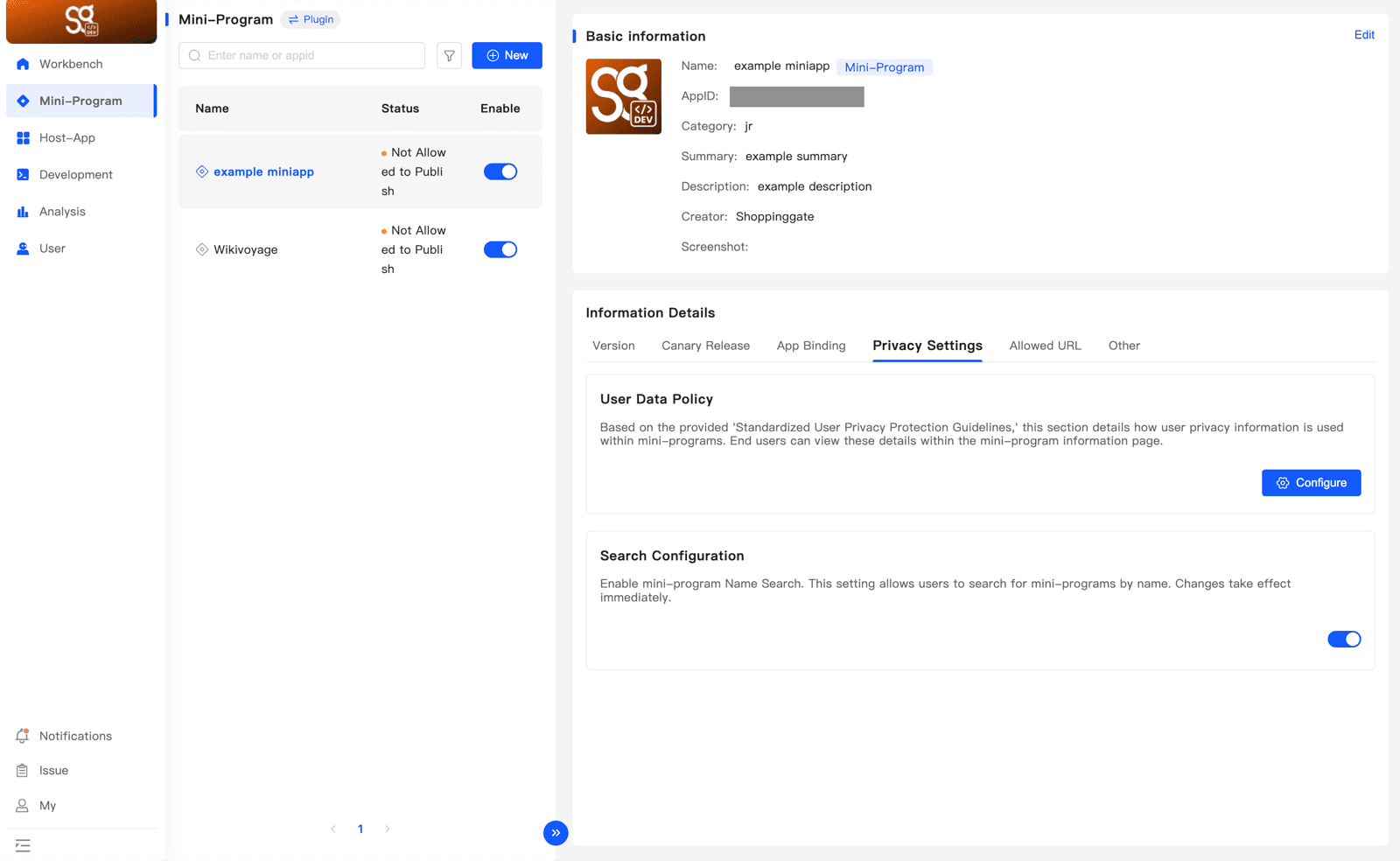
Tell users what information your Mini App processes and why, and choose whether users can find your Mini App by name.
The Privacy Settings tab has two parts:
- User Data Policy — how your Mini App uses user information. Users see it on your Mini App's information page and in permission pop-ups.
- Search Configuration — whether users can search for your Mini App by name.
Fill in the User Data Policy if your Mini App processes user information — for example, if you chose User information is processed when you first submitted a version (see Submit & publish a version). The policy must match what your Mini App really does, and update it when that changes. If it doesn't match, the developer is legally responsible.
1. Open the User Data Policy
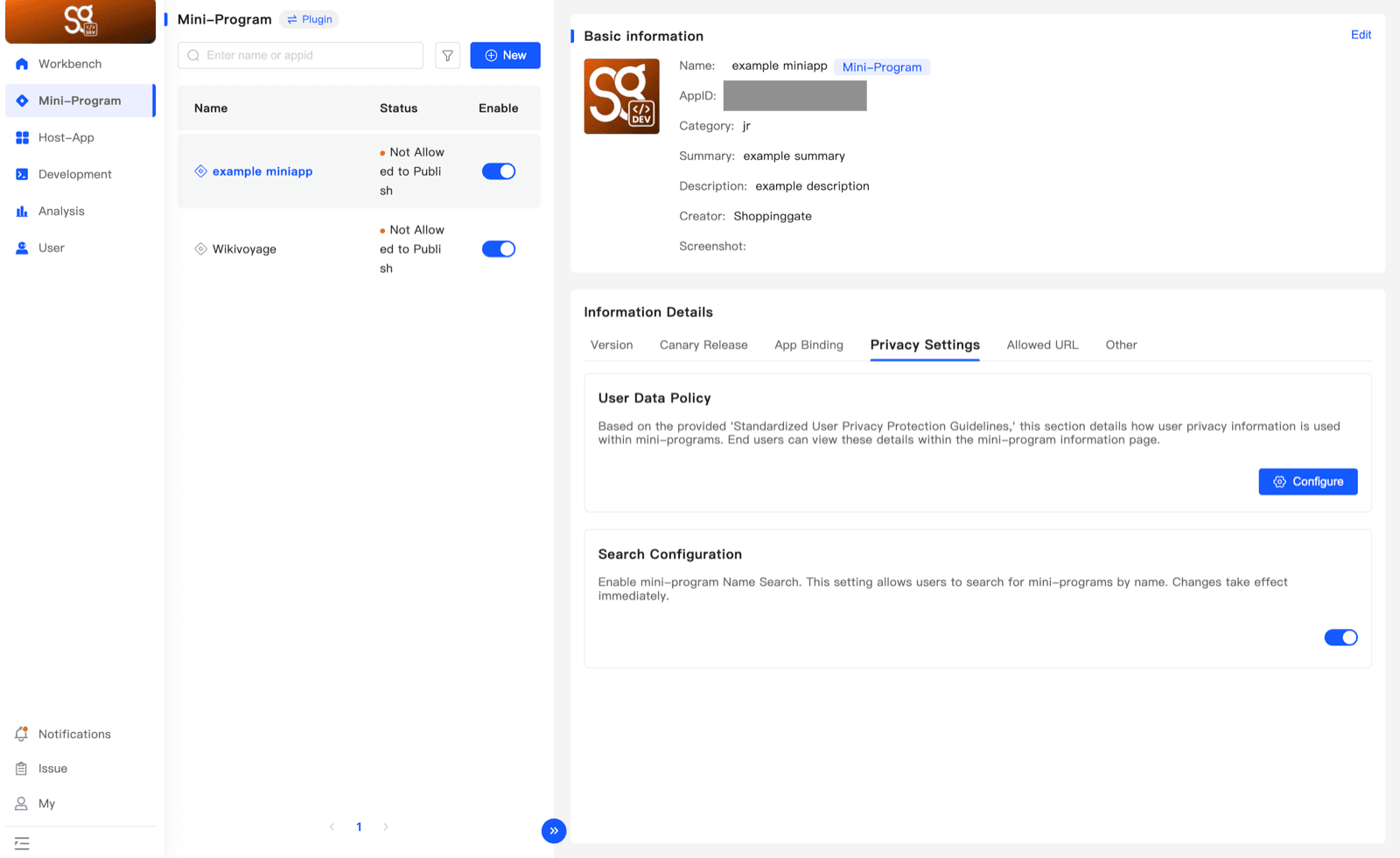
Open Mini-Program, select your Mini App, and click the Privacy Settings tab in Information Details. In User Data Policy, click Configure.
This opens User Privacy Protection Guidelines Setting. Fill in the sections below, then click Confirm at the bottom.
2. Information Processed by the Developer
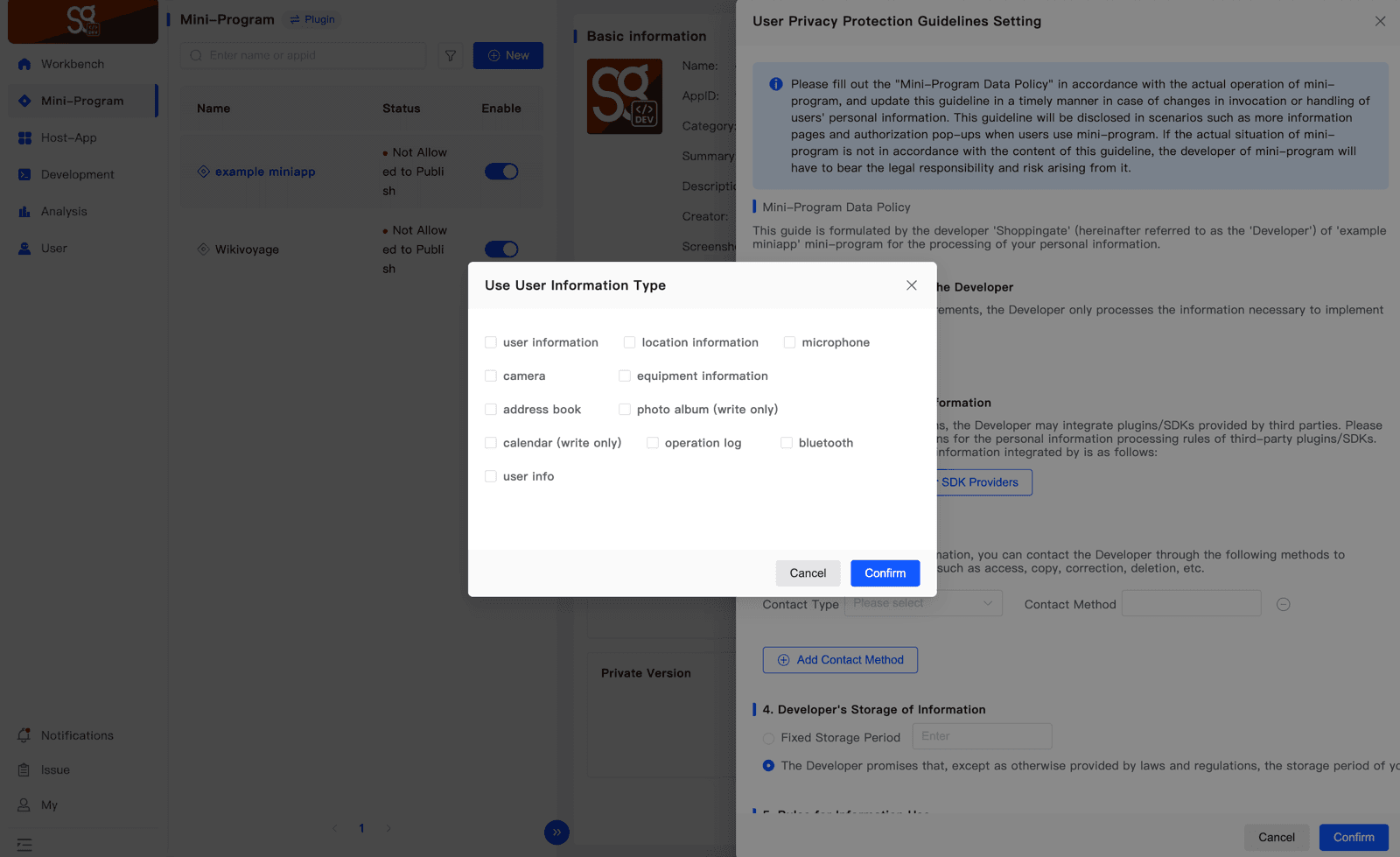
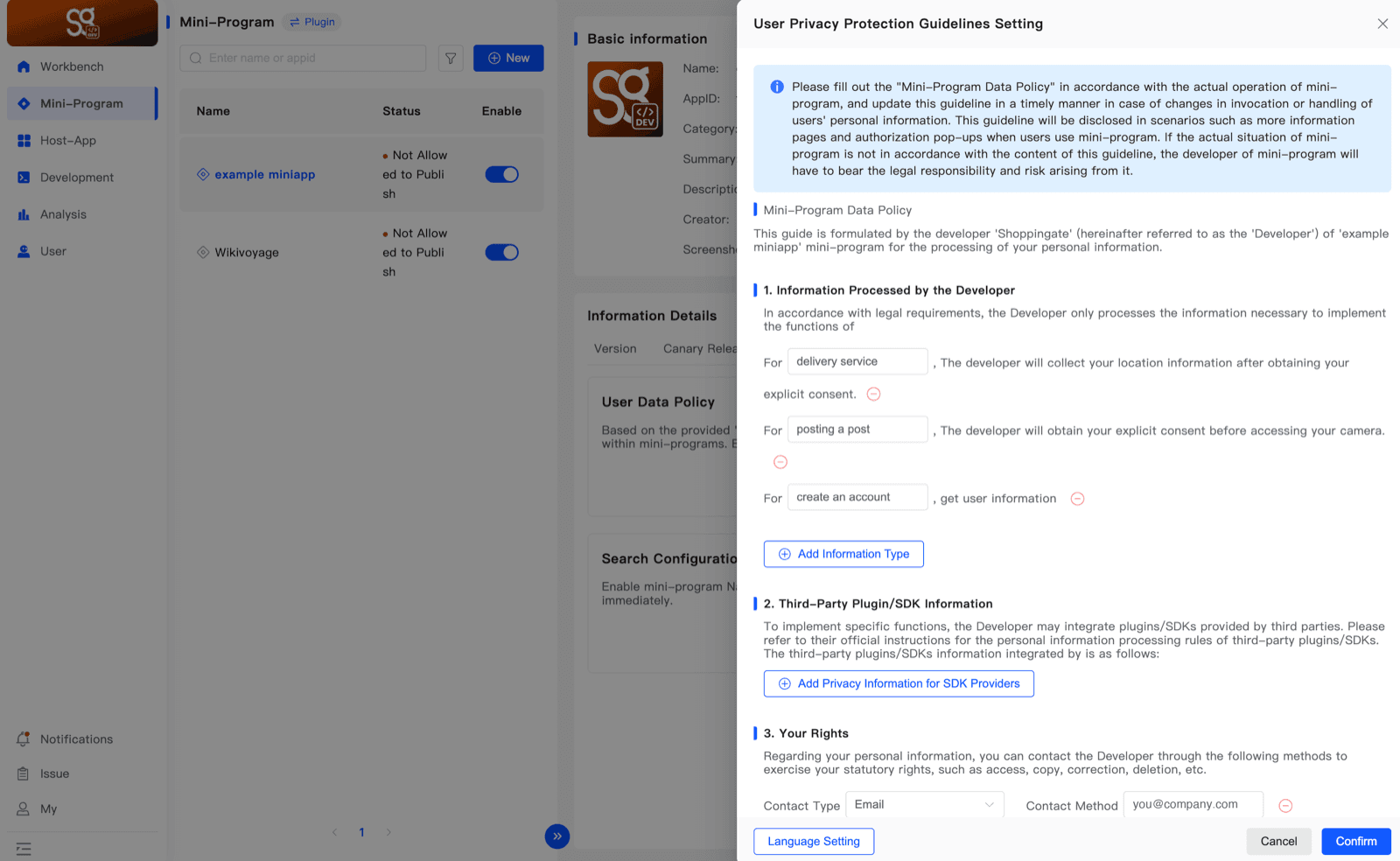
List each type of information your Mini App processes, and why. Click Add Information Type, tick every type your Mini App uses, and click Confirm:
- user information
- location information
- microphone
- camera
- equipment information
- address book
- photo album (write only)
- calendar (write only)
- operation log
- bluetooth
- user info
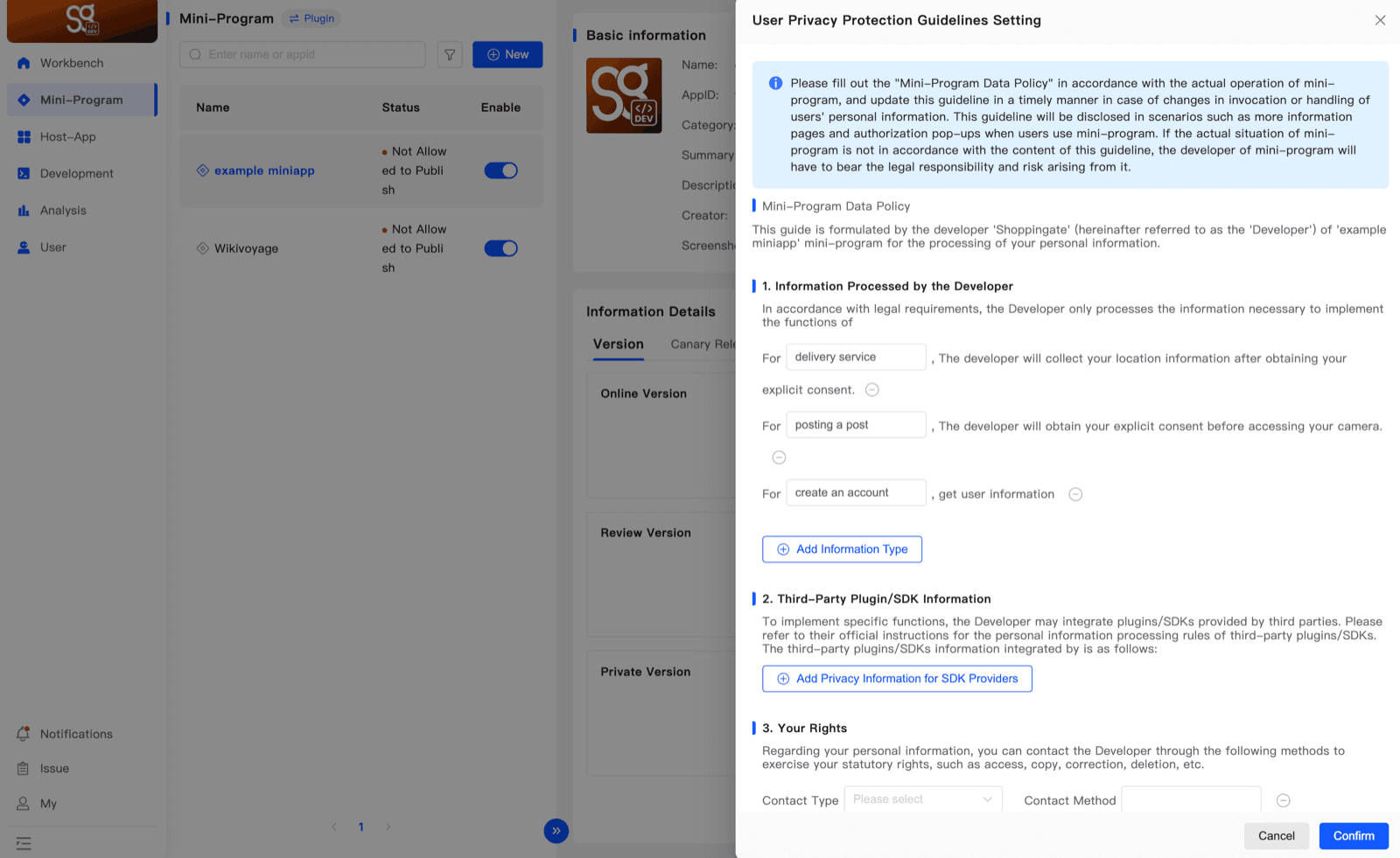
Each type you tick adds a row to the form. Type the purpose in the For box — for example delivery service. The rest of the sentence is fixed for that type:
For delivery service, The developer will collect your location information after obtaining your explicit consent.
Click the ⊖ next to a row to remove it.
3. The other sections
2. Third-Party Plugin/SDK Information
If your Mini App uses third-party plugins or SDKs, add them with Add Privacy Information for SDK Providers.
3. Your Rights
How users can contact you about their information. Choose a Contact Type — Email, Phone or Other — and enter the Contact Method. Click Add Contact Method to add more.
4. Developer's Storage of Information
How long you keep user information. Choose Fixed Storage Period and enter the period in days, months or years, or keep the default promise.
5. – 7.
Rules for Information Use, Provision of Information to Third Parties, and Breach Contact Information. These are read-only — for your information.
8. Supplementary Documents
Optionally, upload a document with more about how you process personal information. Only .txt, up to 100 KB.
9. Custom Privacy Agreement Document
Optionally, upload your own privacy agreement to replace the standard Mini-Program Data Policy.
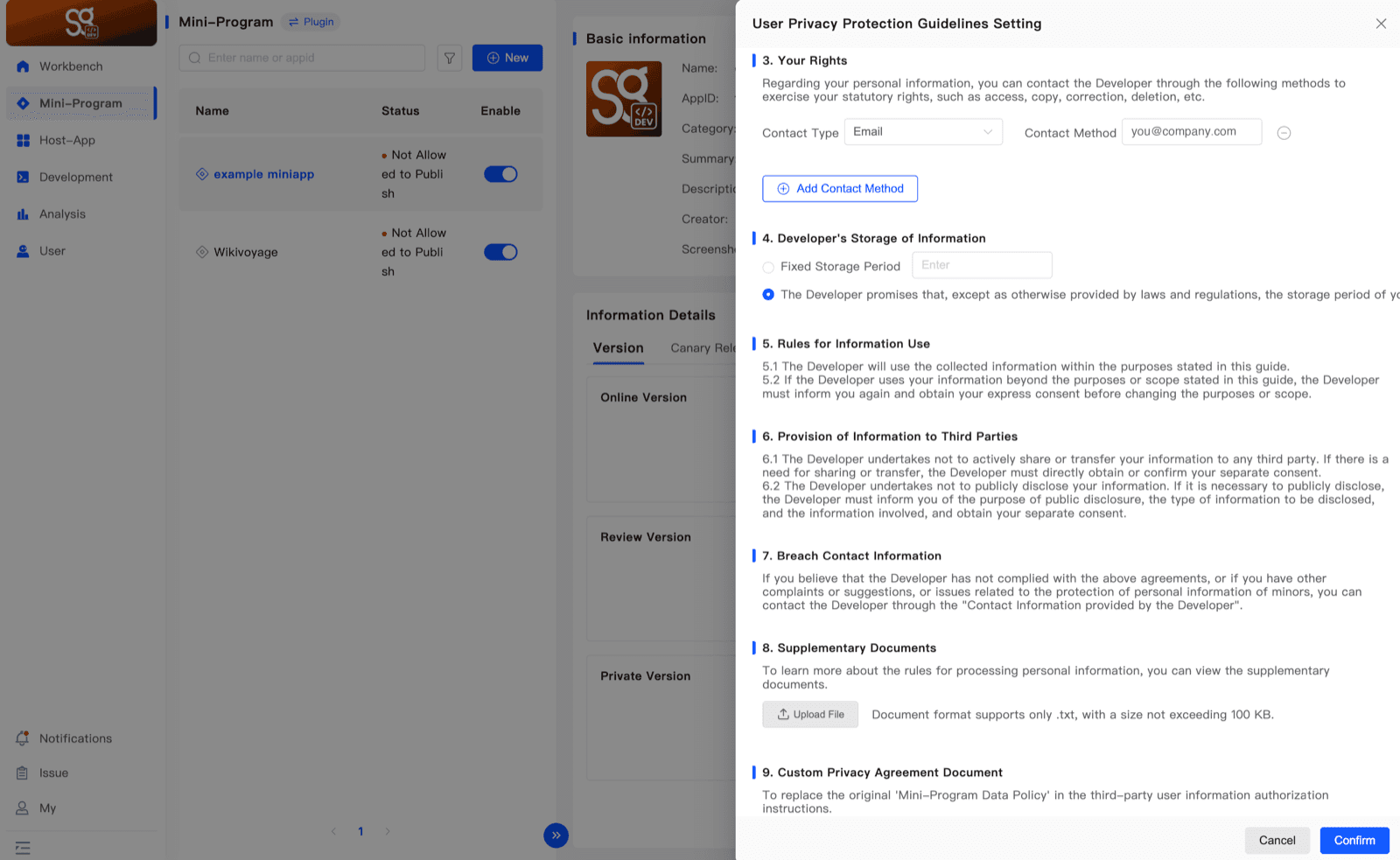
Click Confirm to save the policy.
4. Add Arabic
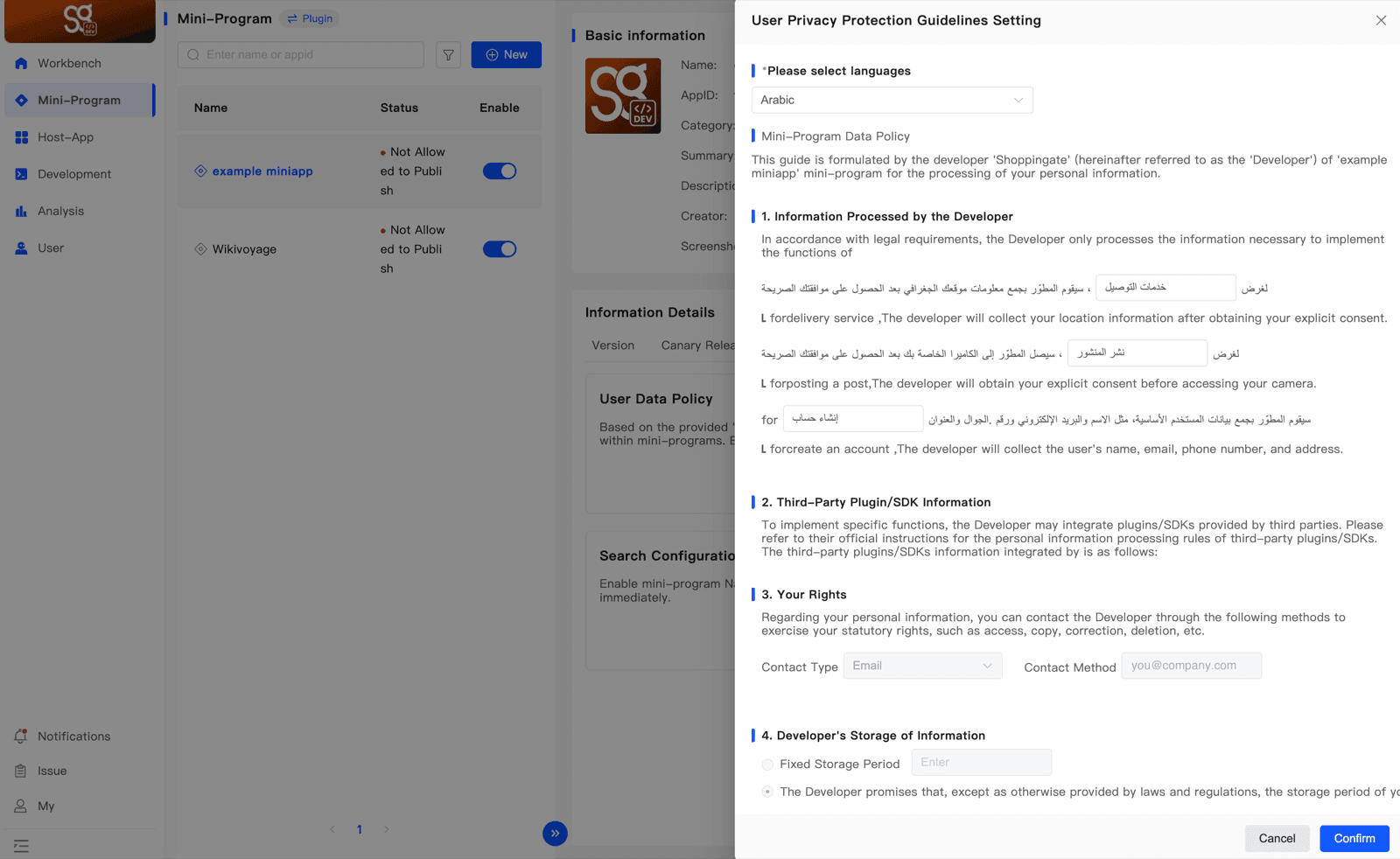
Like your Mini App's details, the policy is in English by default, and Arabic is the only other language you can add. Click Language Setting in the lower left corner of the form.
In Please select languages, choose Arabic. Type each purpose in Arabic — the rest of each sentence is already in Arabic, and the English text is shown under each row for reference. Then click Confirm.
5. Search Configuration
The Search Configuration switch lets users find your Mini App by its name in the Shoppingate app. It is on by default. Turn it off if you don't want your Mini App to show up in search. Changes take effect immediately.