Dev portal
Dashboard & analytics
The Workbench dashboard is the first screen after you log in. It shows a summary of your usage and all your Mini App projects. The Analysis section shows how users are using your Mini Apps.
Workbench → Dashboard
After you log in, the portal opens on Workbench → Dashboard.
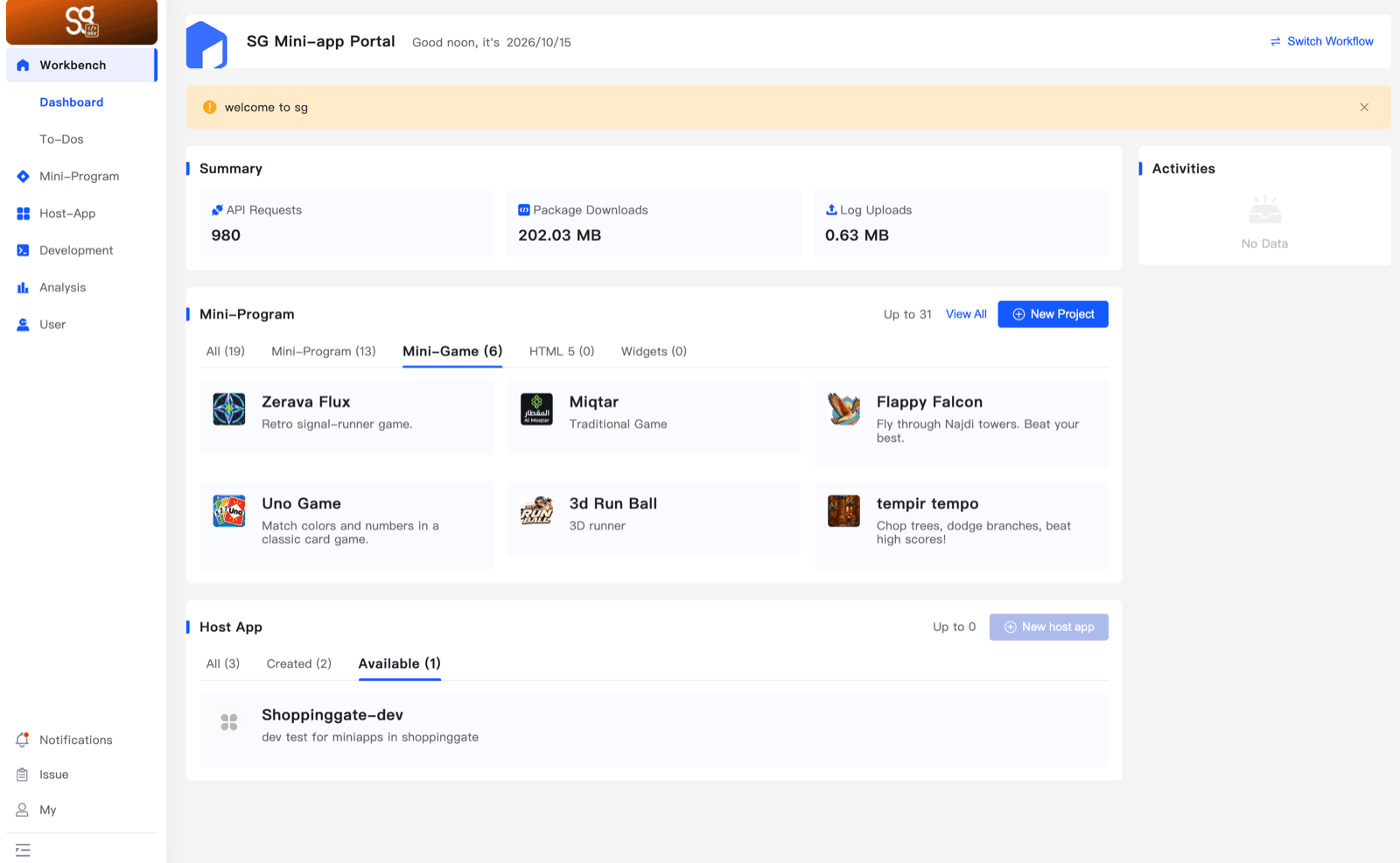
Summary
Three totals for all your Mini Apps, over all time:
API Requests
The total number of API requests made by your Mini Apps.
Package Downloads
The total size of your Mini App packages downloaded by users.
Log Uploads
The total size of logs uploaded by your Mini Apps.
Mini-Program
Your projects, grouped by type in tabs:
- All
- Mini-Program
- Mini-Game
- HTML 5
- Widgets
Each tab shows how many projects it holds. Click View All to see the full list, or New Project to create one.
Up to (for example Up to 31) is the number of projects your account can create. The Shoppingate admin sets this limit — it is at least 5.
Analysis → Data Billboard
Open Analysis → Data Billboard. The Data Dashboard tab shows key statistics for your Mini Apps as daily charts.
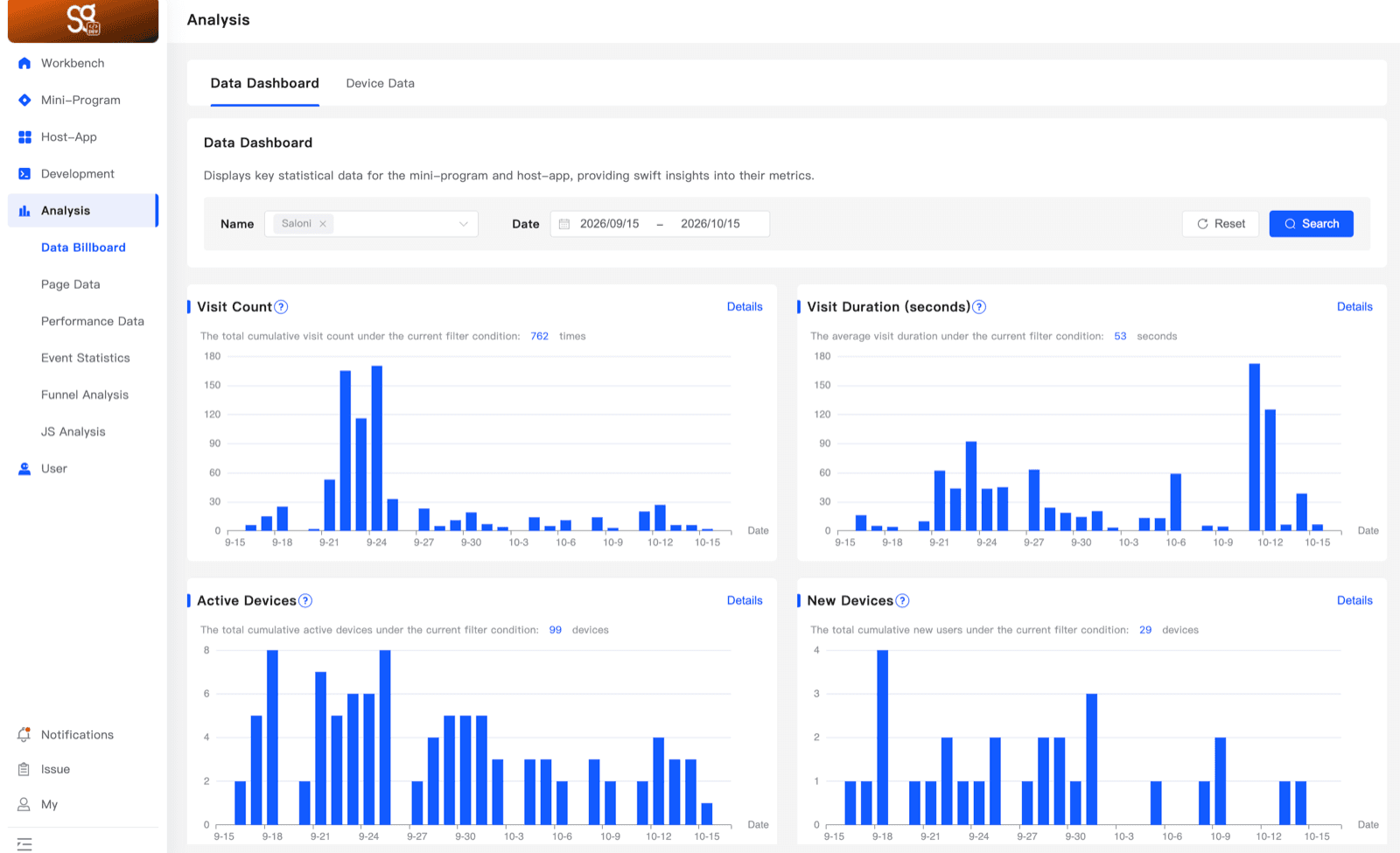
Filters
Name
The Mini Apps to show data for. You can pick one or more.
Date
The start and end date of the period to show.
Click Search to update the charts, or Reset to clear the filters.
Charts
Each chart shows one bar per day, with the total for the whole filter above it:
Visit Count
The total number of visits under the current filter.
Visit Duration (seconds)
The average length of a visit, in seconds, under the current filter.
Active Devices
The total number of devices that used your Mini Apps under the current filter.
New Devices
The total number of new devices — first-time users — under the current filter.
Click Details on a chart to see more detail for that metric.